WizyEMM includes a built-in validation tool for SCEP profiles. This allows administrators to test the configuration against the server and verify that certificates can be issued successfully before pushing the profile to managed devices.
Configuration Steps:
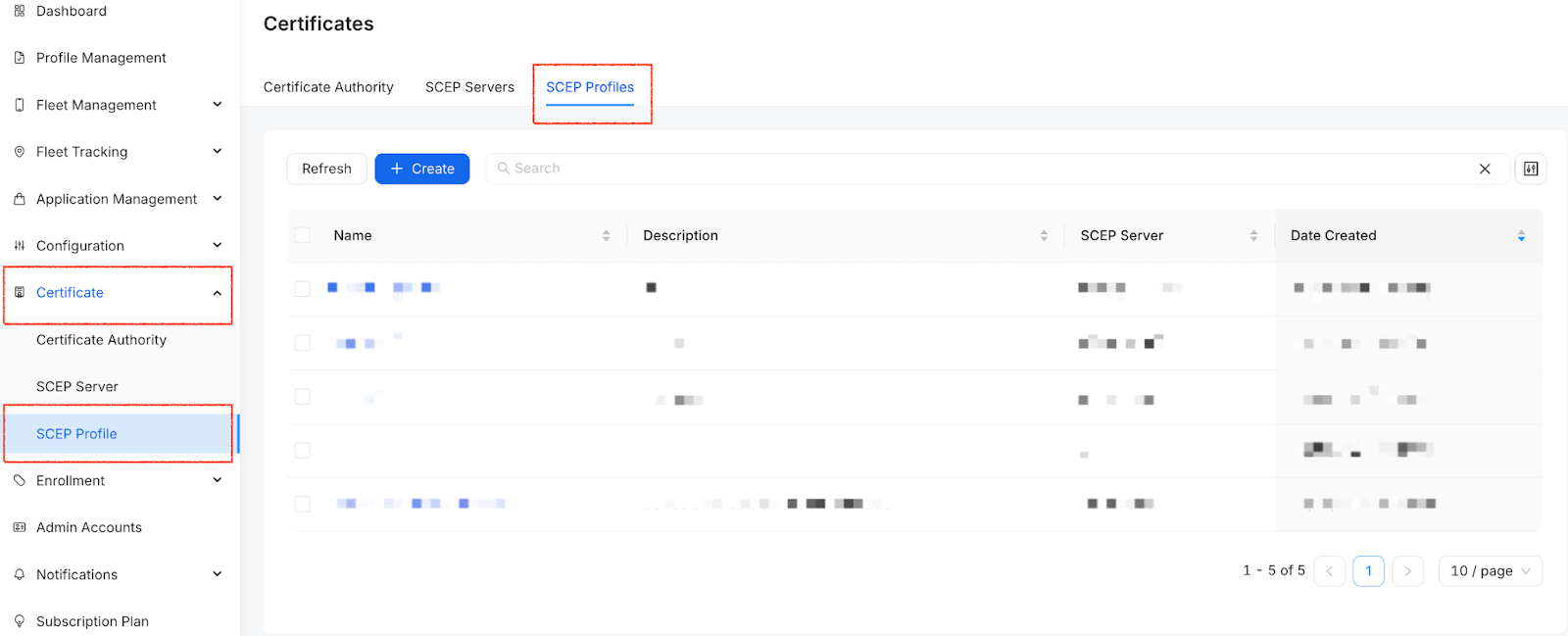
Navigate to the Certificate section in the WizyEMM console sidebar.
Click on the SCEP Profiles tab at the top.
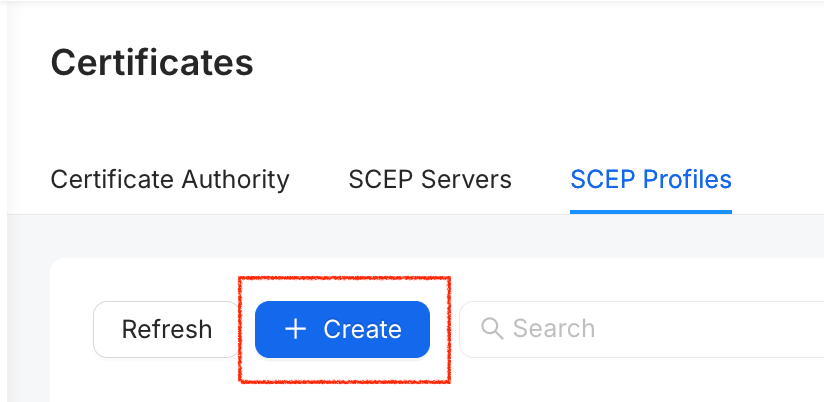
Click the + Create button or select an existing profile to edit.
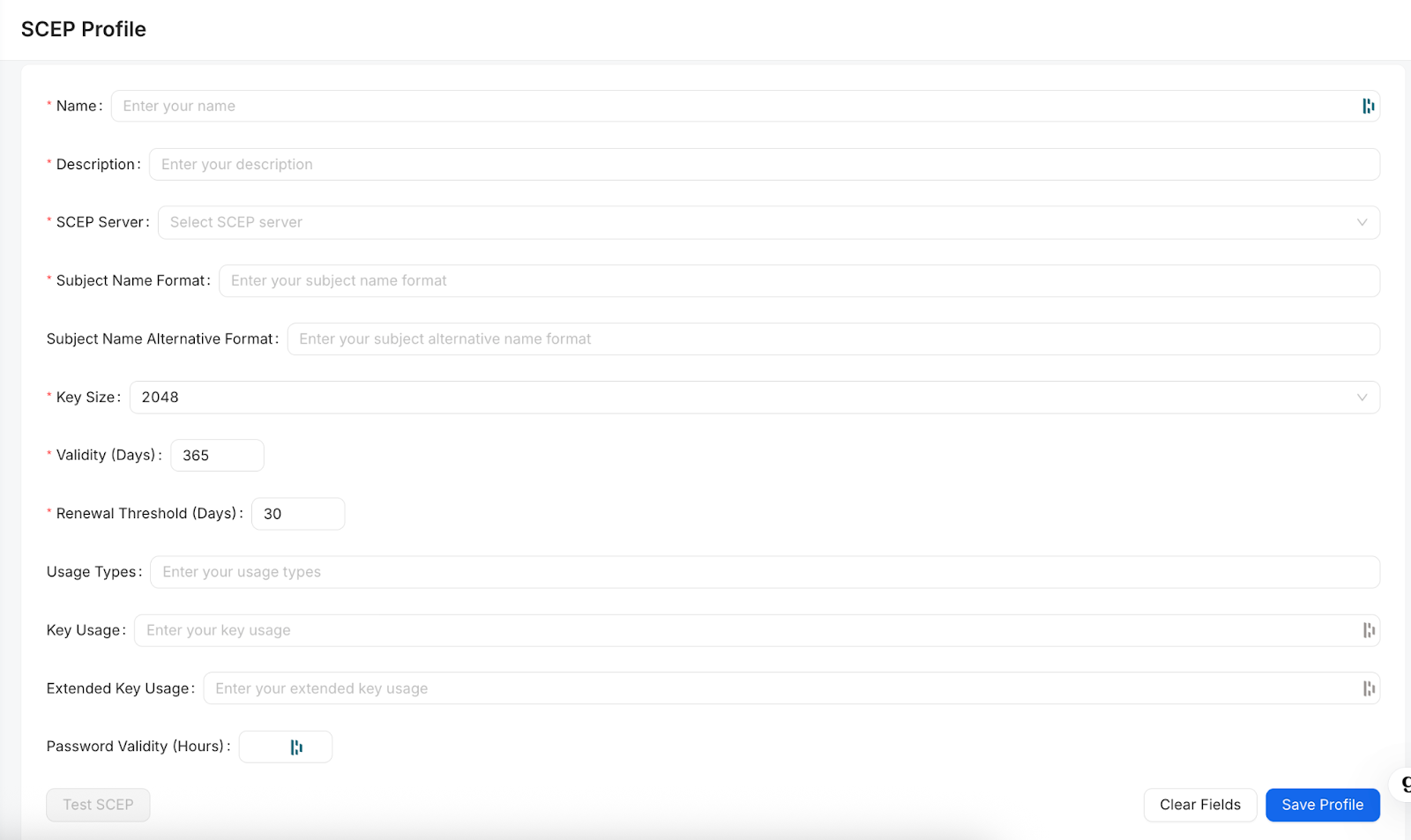
Configure the SCEP Profile details:
Name: Enter a name for the profile.
SCEP Server: Select the appropriate server from your previously created list.
Subject Name Format: Define the certificate subject (e.g., CN={{DeviceName}}).
Key Size: Select the required bit strength (e.g., 2048).
Click the Test SCEP button located at the bottom left of the configuration window.
Review the Test Result pop-up to ensure the status shows as "ISSUED" and all certificate metadata is correct.
Click Save Profile once validation is successful.
Key Benefits:
Risk Mitigation: Ensure configurations are error-free before they reach the fleet.
Real-time Feedback: Instantly view status, serial numbers, and thumbprints during the testing phase.
Deployment Confidence: Confirms that the communication between WizyEMM and your SCEP server is fully functional.
Was this article helpful?
That’s Great!
Thank you for your feedback
Sorry! We couldn't be helpful
Thank you for your feedback
Feedback sent
We appreciate your effort and will try to fix the article