WizyEMM now supports SCEP for Wi-Fi networks, allowing for automatic, certificate-based authentication without the need for manual credential setup. This feature simplifies secure Wi-Fi provisioning, reduces IT overhead, and ensures each device connects using a unique, trusted identity.
Configuration Steps:
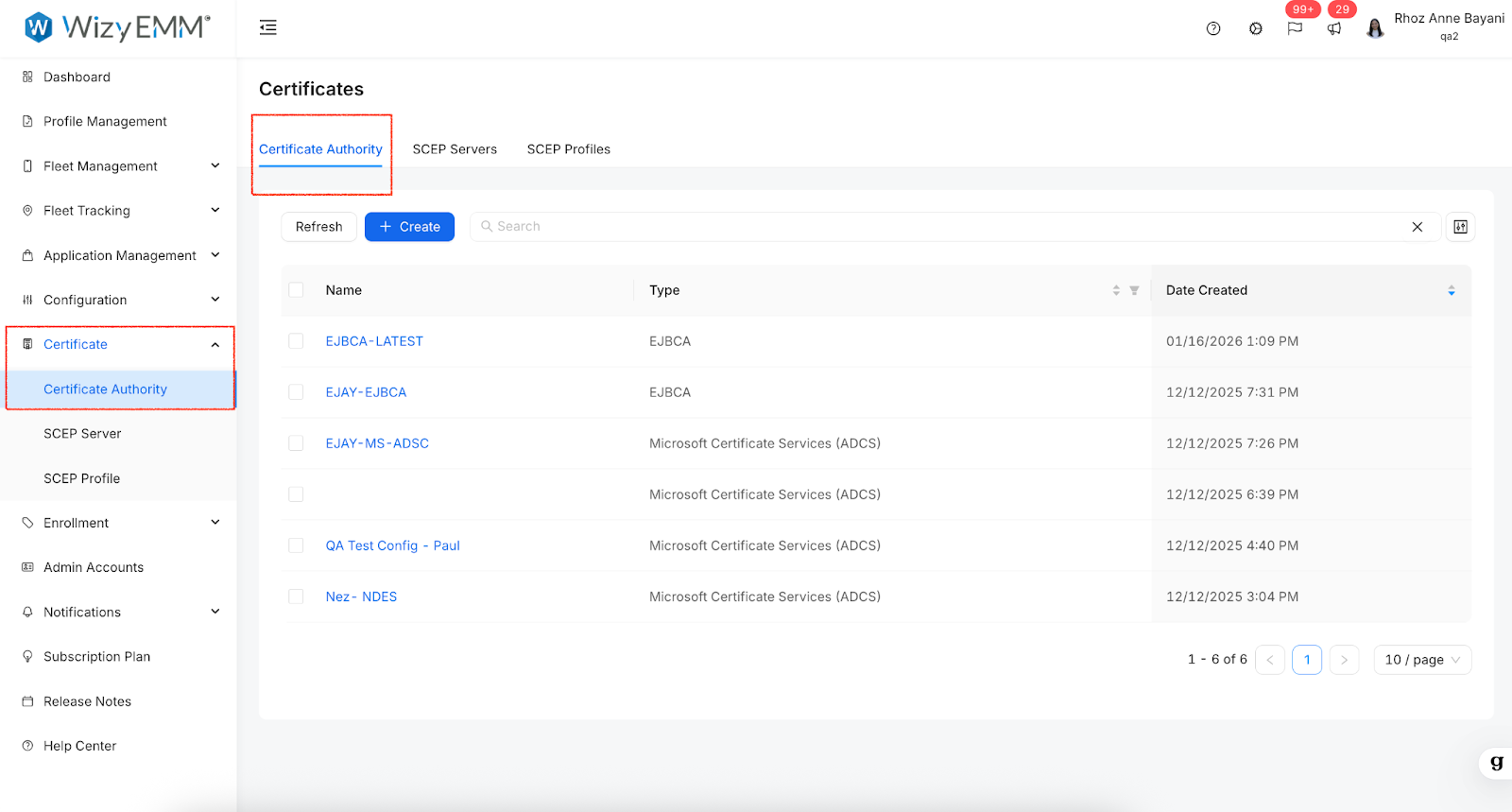
Navigate to the Certificate section in the left-hand menu of the WizyEMM console.
Select Certificate Authority from the submenu.
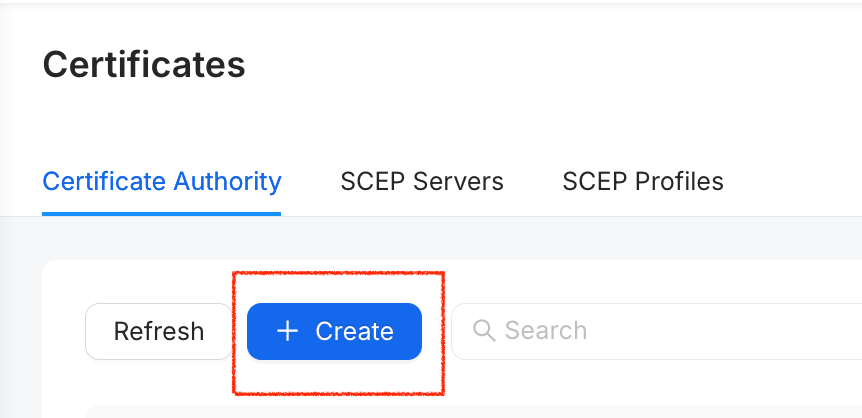
Click the + Create button to add a new Certificate Authority.
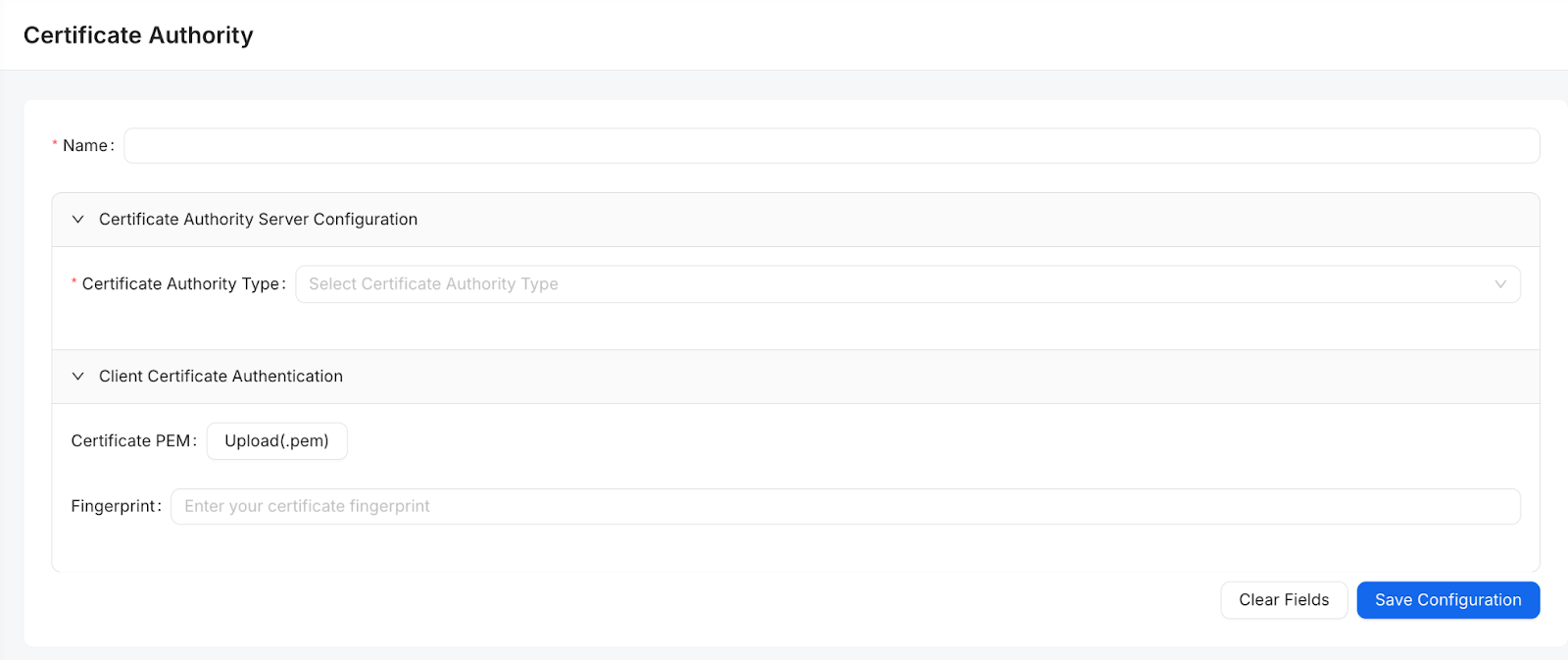
Define the Certificate Authority Server Configuration:
Name: Give your configuration a recognizable name
Certificate Authority Type: Select your provider from the dropdown menu.
Set up Client Certificate Authentication:
Certificate PEM: Upload or paste the Root CA certificate in PEM format.
Fingerprint: Enter the certificate fingerprint if required.
Click Save Configuration to finalize the setup.
Key Benefits:
Simplified Provisioning: SCEP simplifies the process of deploying secure Wi-Fi.
Reduced Overhead: It reduces IT workload by removing the need for manual credential setup.
Enhanced Security: It ensures each device connects using a unique, trusted identity.
Automated Authentication: It enables automatic, certificate-based authentication for Wi-Fi networks.
Was this article helpful?
That’s Great!
Thank you for your feedback
Sorry! We couldn't be helpful
Thank you for your feedback
Feedback sent
We appreciate your effort and will try to fix the article