The Certificate Settings feature provides a dedicated tab within the profile configuration screen. This enables administrators to securely upload, store, and manage Client Certificates that are automatically issued to managed hardware during the enrollment phase.
Certificate Interface Components
The dashboard under this sub-tab splits certificate tracking and additions into three specific operational blocks:
Add Certificate Source: The main entry panel used to manually supply a certificate. It contains fields for selecting the Certificate Source method, uploading the Client Certificate file, inputting a Certificate Password, and defining a custom Certificate Alias.
Manual Client Certificates: A tracking log table that lists all manually provisioned profile certificates by their custom Certificate Alias and chronological Issued Date, with an administrative option to click Remove.
SCEP Profiles: A secondary log table displaying automated Simple Certificate Enrollment Protocol credentials mapped to the profile, listed by Profile Name and Description, with an option to click Remove.
Step-by-Step Configuration Procedure
Follow these instructions to attach a client certificate to a specific device profile layout:
Log in to your WizyEMM console.
Select Profile Management from the sidebar navigation menu and click on the specific profile you intend to configure.
Click on the Configuration tab from the main profile settings row.
Select the Certificate Settings sub-tab (positioned directly between Network Settings and Advanced Features).
Locate the Add Certificate Source section to define your credentials:
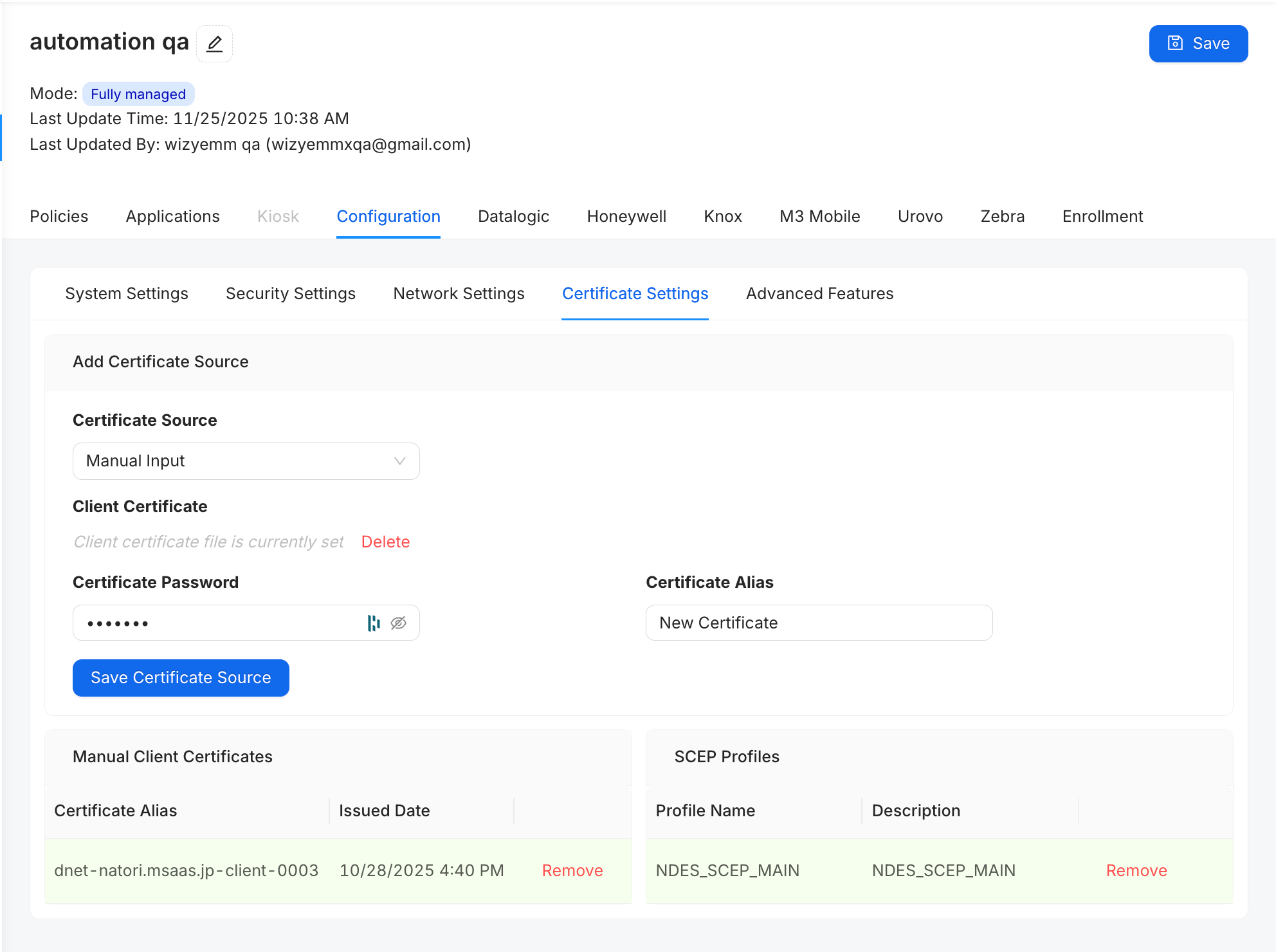
Click the Certificate Source dropdown menu and choose your input method (e.g., Manual Input).
Use the file picker tool to upload your credential file into the Client Certificate field.
Input the designated private key passcode into the Certificate Password field.
Enter a clear, identifiable name within the Certificate Alias text field.
Click the blue Save Certificate Source button to validate and pin the certificate package to the profile.
Confirm that your newly added certificate updates correctly within the Manual Client Certificates or SCEP Profiles data tables below.
Click the blue Save button located in the upper-right corner of the profile page to finalize the configuration and authorize automatic issuance to enrolling devices.
Was this article helpful?
That’s Great!
Thank you for your feedback
Sorry! We couldn't be helpful
Thank you for your feedback
Feedback sent
We appreciate your effort and will try to fix the article