Administrators can define custom rules to automatically grant managed applications access to device private keys, completely eliminating the need for user-facing prompts. By directly mapping certificate aliases to specific application packages and URL patterns, this feature enables a seamless and secure authentication workflow for Android Enterprise devices.
Procedure: How to Create a Private Key Rule
Follow these step-by-step instructions to configure automated private key access within a device profile:
Access Profile Management Log in to your console and navigate to Profile Management on the left-side menu panel.
Open the Configuration Tab Select the specific device profile you wish to modify and click on the Configuration tab.
Navigate to Private Key Rules Click on the Private Key Rules sub-tab (located between Certificate Settings and Advanced).
Add a New Rule Click the blue Add Rule button to open the configuration dialog box.
Configure the Private Key Rule Settings In the pop-up window, fill out the following properties:
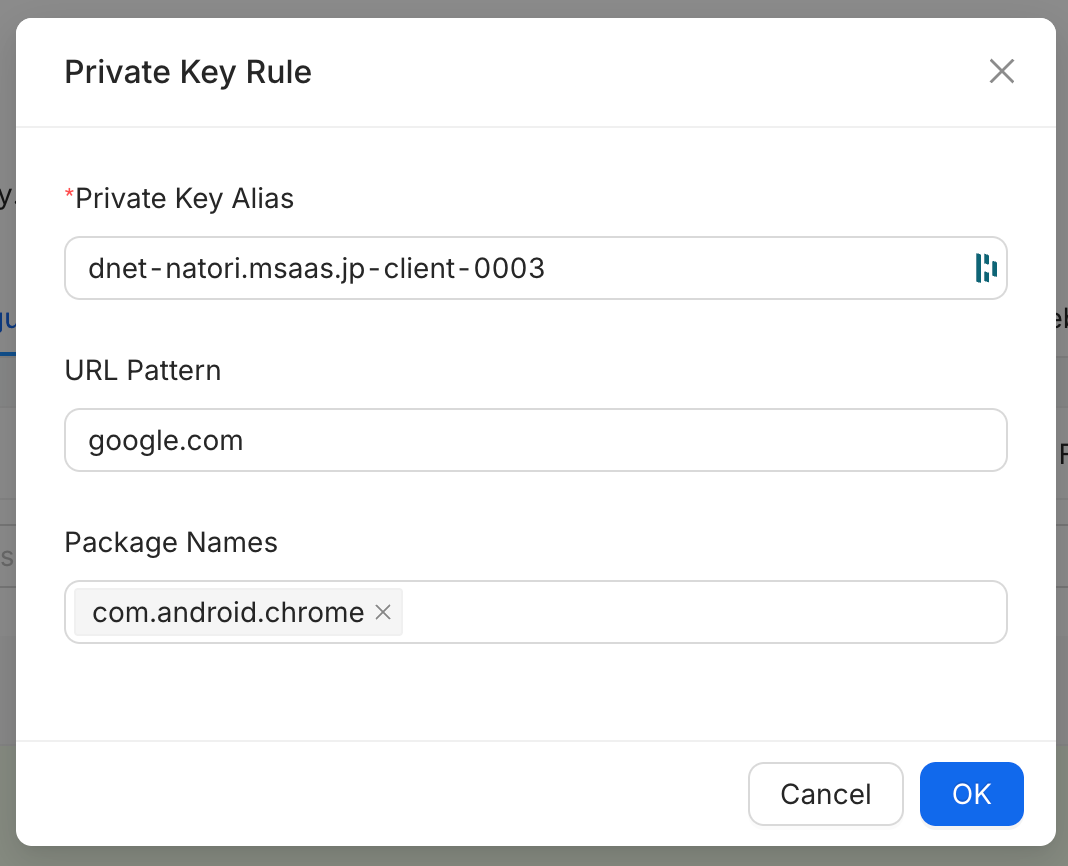
Private Key Alias: Enter or select the required certificate alias (this is a mandatory field marked with a red asterisk).
URL Pattern: Enter the targeted URL pattern (such as google.com) to restrict or direct the certificate's application context.
Package Names: Enter or select the specific application package name (such as com.android.chrome) that should be granted automatic access to the key.
Save the Rule Click OK within the pop-up dialog box to save your settings and add the rule to the profile table.
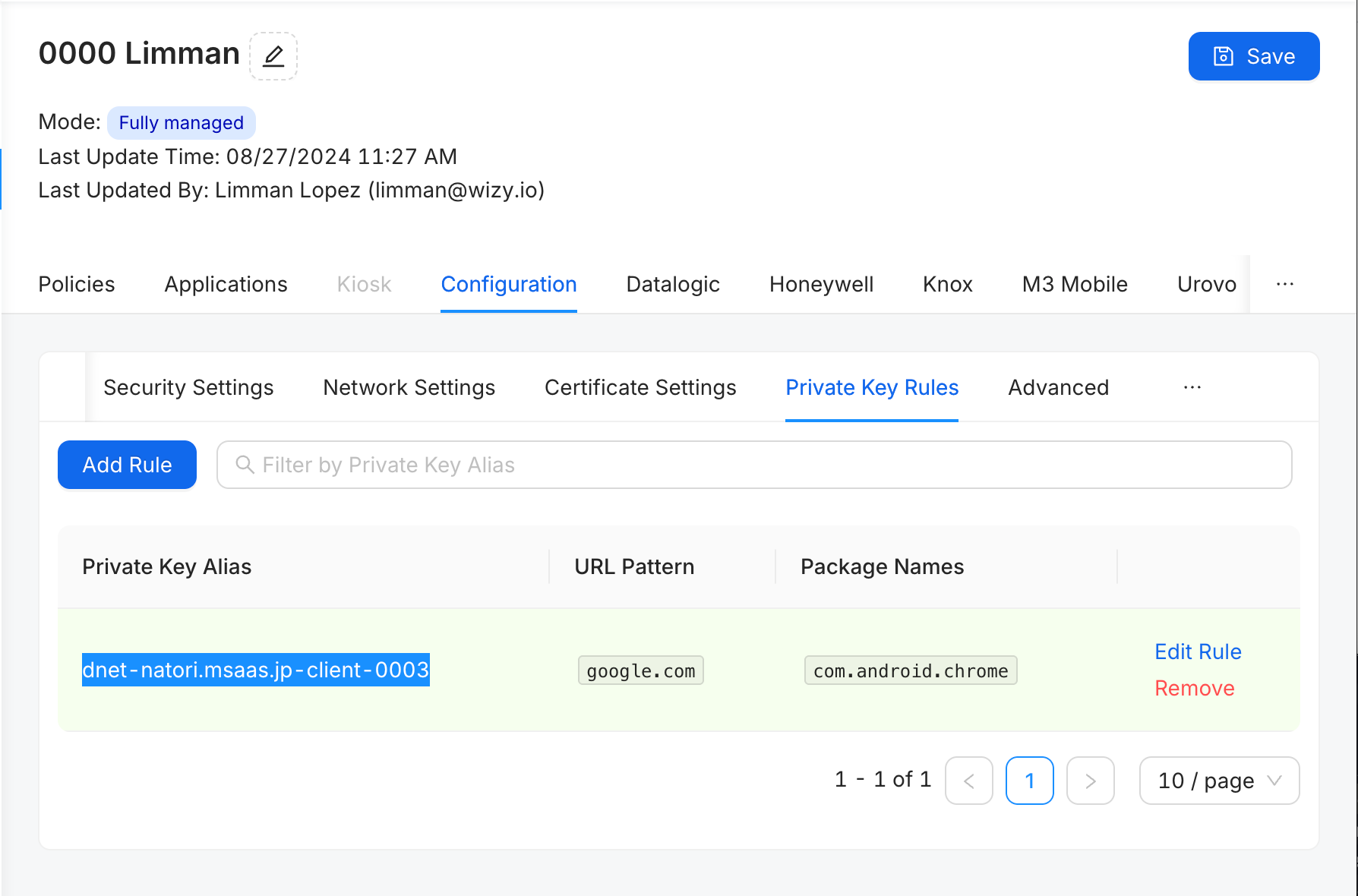
Managing Existing Private Key Rules
From the main Private Key Rules interface, you can maintain your deployed rules using the following console tools:
Filter Rules: Use the Filter by Private Key Alias search bar to quickly locate specific rules within the profile.
Edit a Rule: Click the Edit Rule action on the right side of any row to modify its URL patterns or package mappings.
Remove a Rule: Click the red Remove action to permanently delete the rule and revoke automated private key access for that specific mapping.
Was this article helpful?
That’s Great!
Thank you for your feedback
Sorry! We couldn't be helpful
Thank you for your feedback
Feedback sent
We appreciate your effort and will try to fix the article