Administrators gain per-app control over which applications are permitted to serve as credential providers on Android 14+ devices. This enables seamless and secure auto-fill from password managers such as 1Password, Bitwarden, and LastPass across managed apps, without requiring any additional package.
Procedure: How to Enable a Credential Provider App
Follow these step-by-step instructions to permit an application to act as a credential provider within a device profile:
Access the Profile Applications
Go to Profile Management in your WizyEMM console and select the specific device profile you wish to configure.Open the Advanced App Settings Navigate to the Applications tab within the profile. Locate the app that you need to configure, or add it if it is not yet added. Once the application is added to the list, click "Advanced".
Locate the Credential Provider Setting Inside the advanced application configuration dialog, find the field labeled "Allowed to act as a credential provider (Android 14 and above)".
Adjust the Configuration Click the dropdown menu next to this setting and choose your preferred policy action:
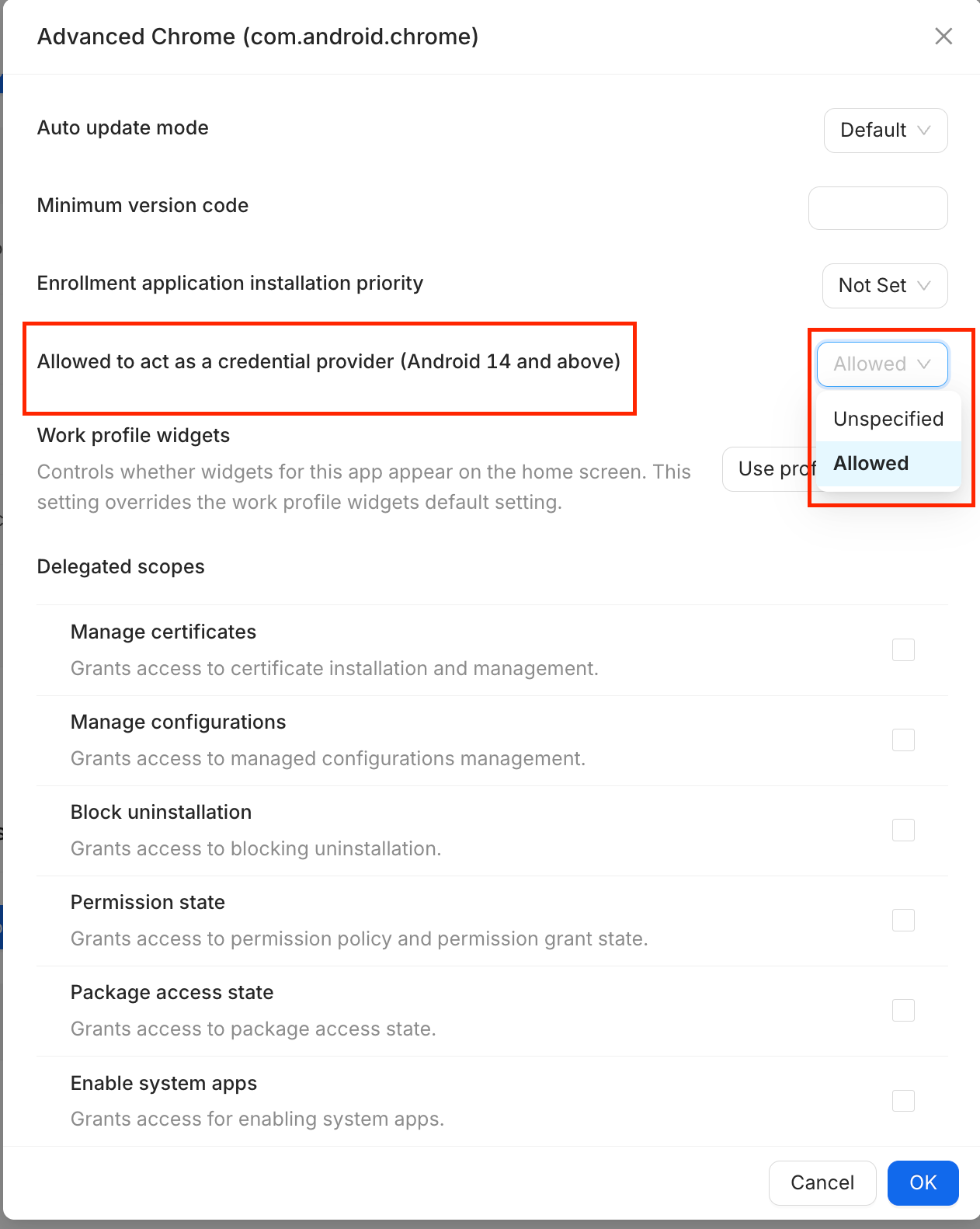
Unspecified: Follows the default system behavior.
Allowed: Explicitly authorizes the app to serve as a secure credential provider on the device.
Save the Changes Click "OK" at the bottom of the dialog box to confirm the app settings, then remember to click "Save" at the top right of the profile to deploy the configuration changes to your fleet.
Was this article helpful?
That’s Great!
Thank you for your feedback
Sorry! We couldn't be helpful
Thank you for your feedback
Feedback sent
We appreciate your effort and will try to fix the article