Administrators have complete control over their integration environment through the centralized API Keys menu. When creating a new API key, you can link it directly to an administrator to inherit their specific permissions, streamlining access management across your organization. This centralized view provides an audit trail to monitor key usage, including creators and "Last Used" timestamps, and allows you to easily distinguish between legacy keys and newly securely-generated ones.
Procedure: How to Create an API Key
Follow these step-by-step instructions to generate and secure a new API key:
Navigate to the API Keys Menu
Log in to your console and click on the API Keys menu located on the left-hand navigation panel (below Admin Accounts).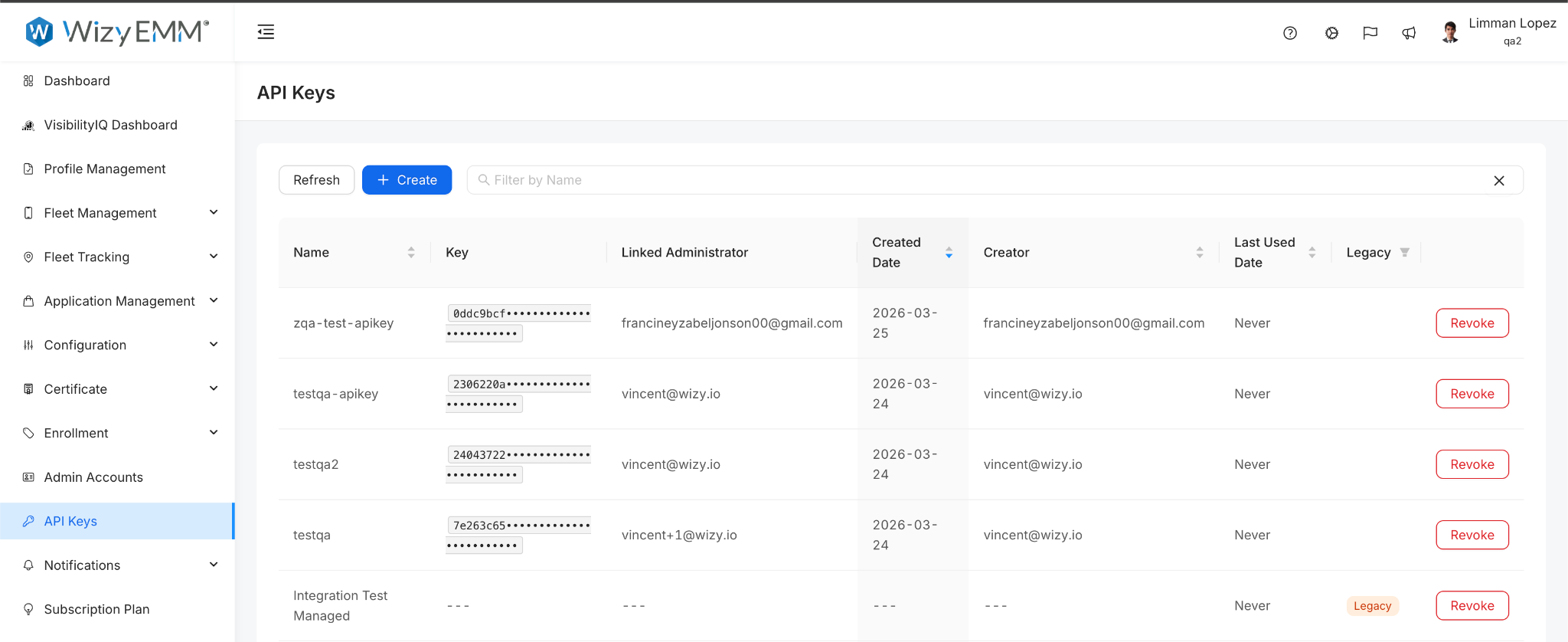
Initiate Key Creation
Click the blue + Create button at the top of the interface.Configure the API Key Details
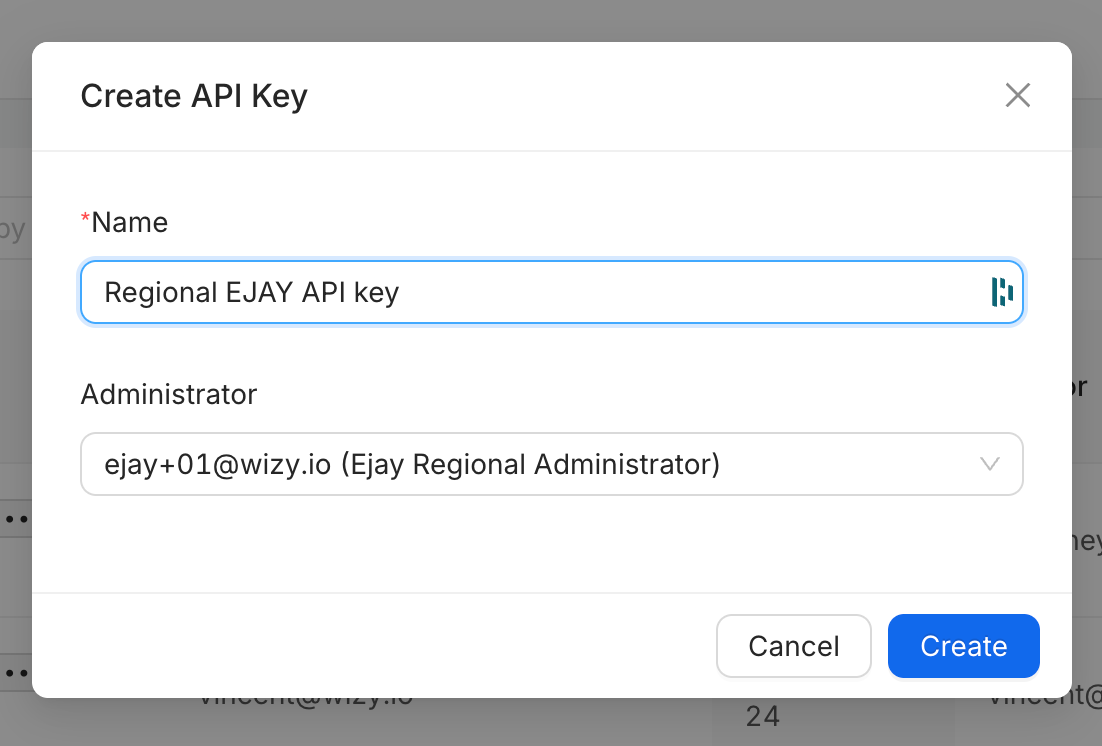
In the Create API Key pop-up window, fill out the required fields:Name: Enter a short, clear title describing the purpose of the key (e.g., Regional EJAY API key).
Administrator: Select an administrator from the dropdown menu. Linking a key to an administrator allows it to inherit their specific system permissions.
Generate the Key
Click the confirmation button to successfully generate the key.Save and Secure the Key
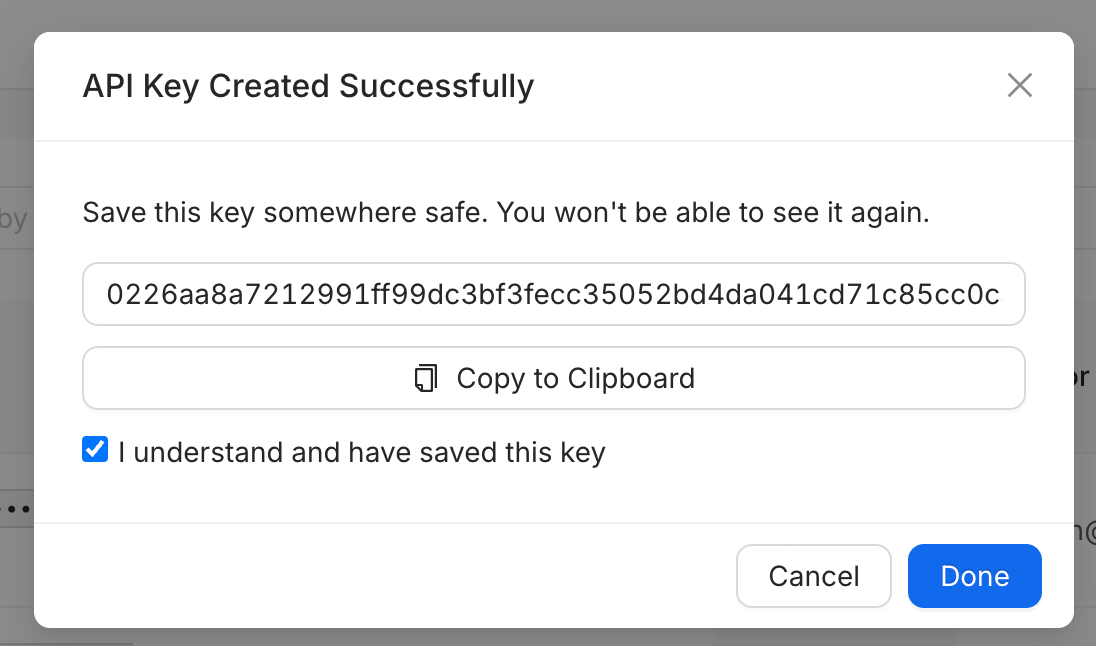
The API Key Created Successfully window will appear, revealing your newly generated key string.Click the Copy to Clipboard button.
Important: Make sure to save this key somewhere safe immediately. You will not be able to see or retrieve it again after closing this window.
Finalize the Process
Tick the checkbox next to I understand and have saved this key, then click the blue Done button to complete the setup.
Monitoring and Revoking API Keys
From the main API Keys dashboard table, administrators can actively monitor and manage active integrations:
Centralized Filtering: Use the Filter by Name search bar to quickly locate a specific key in large environments.
Audit Trail Tracking: Review critical metadata columns including the key Name, truncated Key string, Linked Administrator, Created Date, Creator, and Last Used Date.
Legacy Identification: Easily distinguish older keys from newly secured ones via the designated orange Legacy column tag.
Revoking Access: If a key is compromised or no longer required, click the Revoke button on the far right of the corresponding row to permanently deactivate it.
Was this article helpful?
That’s Great!
Thank you for your feedback
Sorry! We couldn't be helpful
Thank you for your feedback
Feedback sent
We appreciate your effort and will try to fix the article