This article explains how to correctly configure, upload, and deploy a sideloaded APK through the WizyEMM console. These steps ensure that the APK is properly recognized, signed, and pushed to devices using the Install APK command. It also covers when a sideloaded app needs to be added to a profile for installation or kiosk usage.
Troubleshooting Steps:
1. Add Signing Key to Managed Application
(The process for adding a sideloaded app has been streamlined. Uploading the APK file will now automatically populate the necessary technical details.)
Log in to the WizyEMM console.
Go to Application Management > Managed Applications.
Click + Add to add an Application.
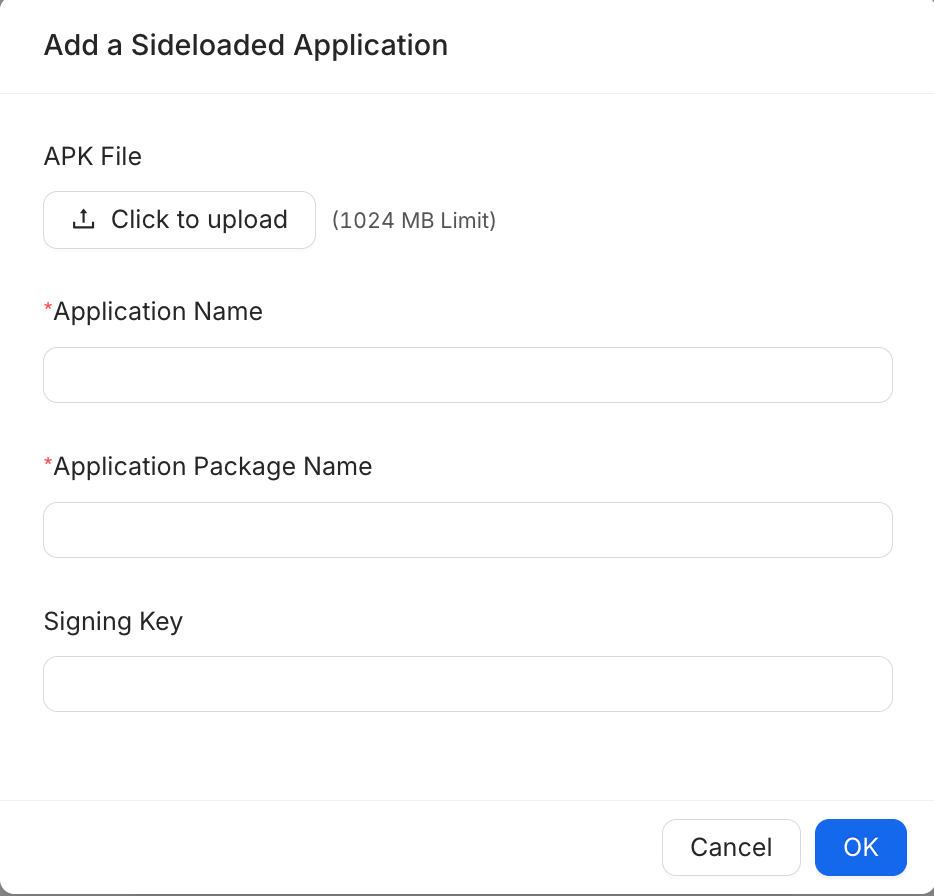
In the Add a Sideloaded Application dialog, complete the following:
APK File (1024 MB Limit): Click the upload area to select and upload your APK file.
Once the file is uploaded, the Application Name, Application Package Name, and Signing Key fields will be automatically populated with details extracted from the APK file.
Note: While these fields are auto-filled, ensure the information is correct for your application.
Click OK to save the application.
2. Install the APK
Go to Fleet Management > Android Device List.
Select the device(s) to which you want to install the APK.
On the upper right, click Actions.
Choose the Install APK command.
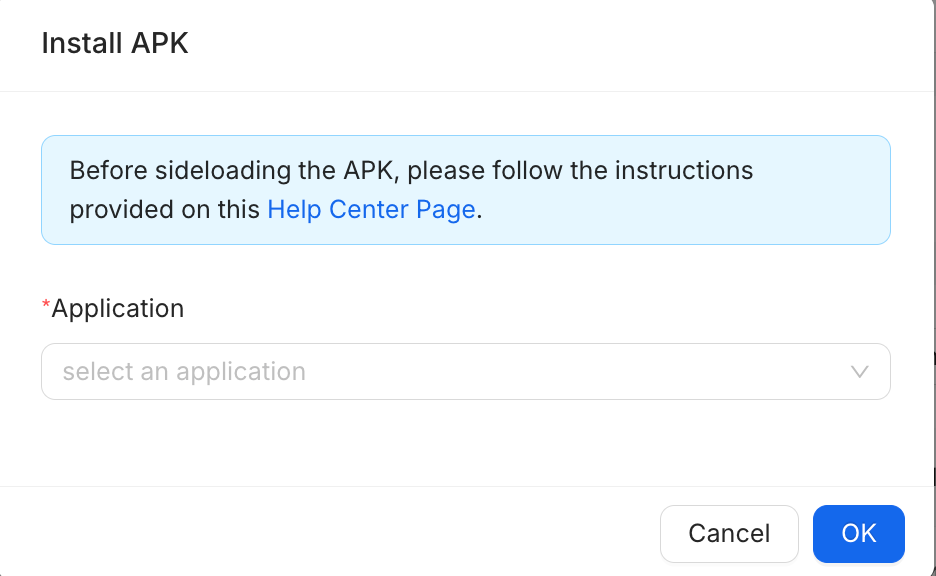
In the Install APK dialog:
Under *Application, select the name of the sideloaded application you configured in Step 1
Note: The console automatically associates this managed application with the APK file you uploaded earlier.
Click OK on the lower right to push the installation command.
3. Add App to Profile (If not already done)
Important Note: This step is mandatory only for Restricted Play Store and Kiosk profiles. For profiles configured with Open Play Store, users are typically permitted to install APKs directly without the need for the application to be explicitly added to this installed list.
Go to Profile Management and select the affected profile.
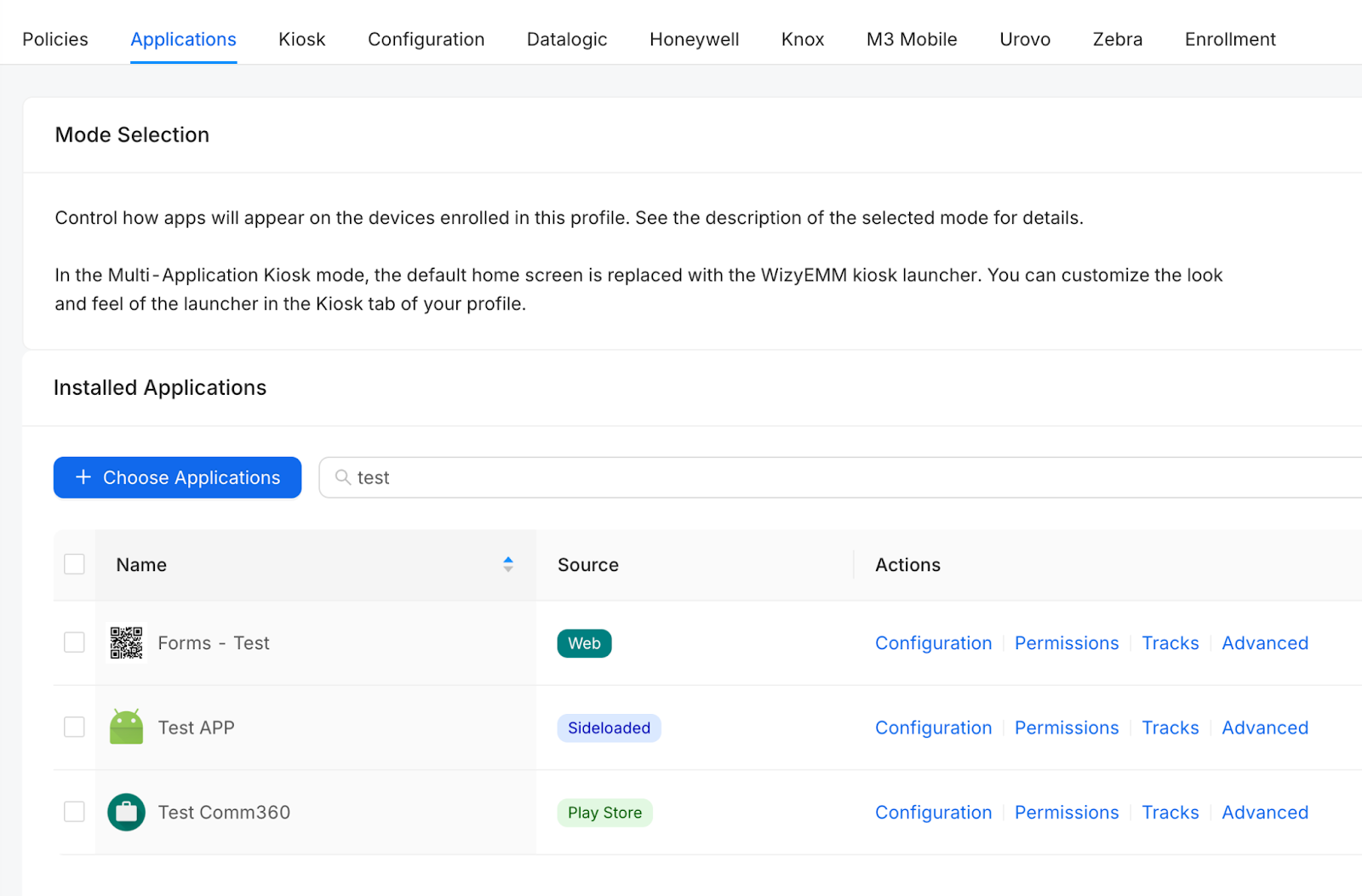
Go to the Applications section/tab.
Under Installed Applications, click + Choose Applications.
Select the sideloaded application (Source: Sideloaded) and click OK.
Click Save on the upper right of the profile to apply the change.
Was this article helpful?
That’s Great!
Thank you for your feedback
Sorry! We couldn't be helpful
Thank you for your feedback
Feedback sent
We appreciate your effort and will try to fix the article