The App Widget Policy feature gives organizations direct control over whether work applications are permitted to add widgets to a device's personal home screen. This allows administrators to manage data visibility and customize user workflows across their fleet.
Policy Enforcement Architecture
The framework provides two interacting layers of management:
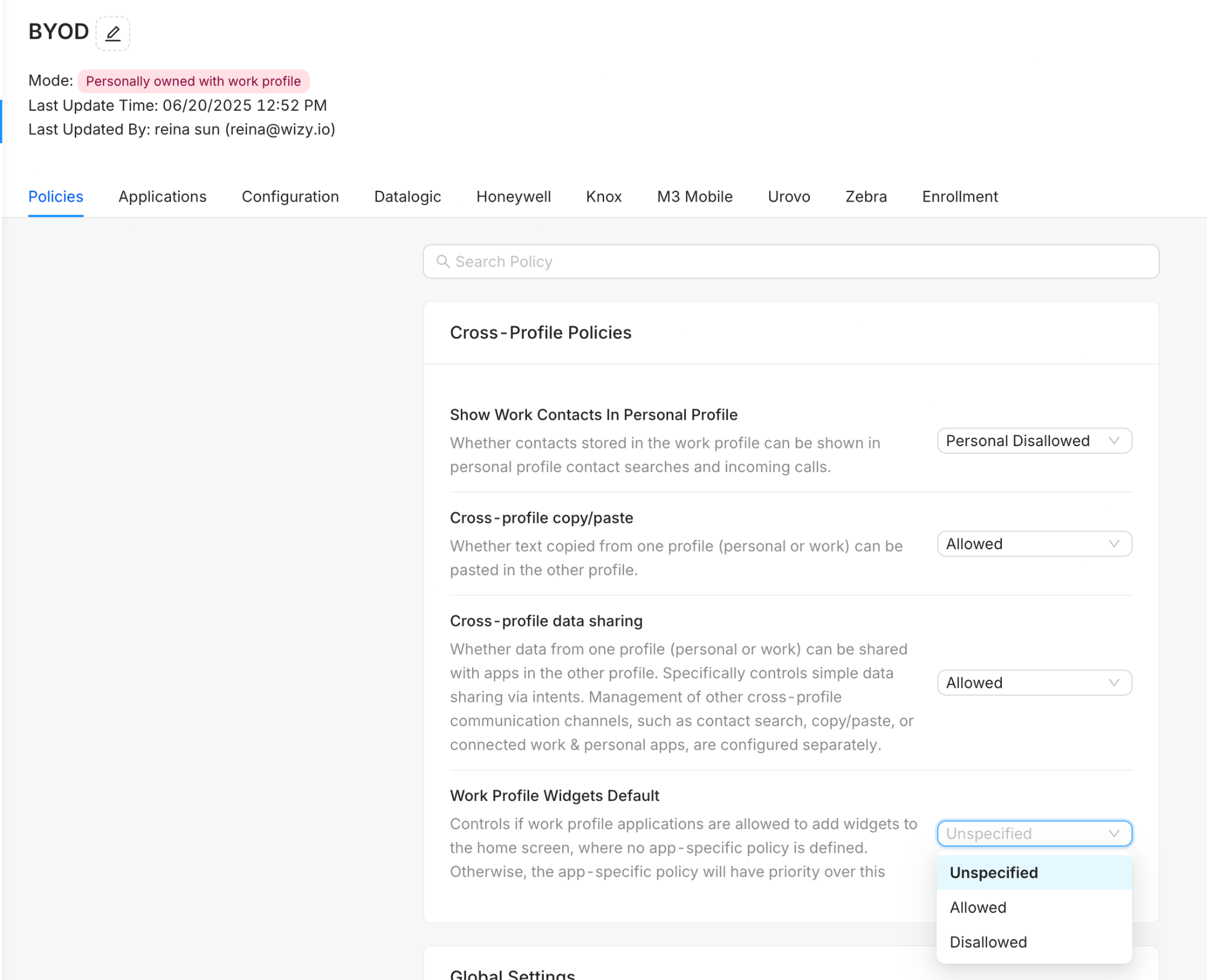
Global Default Policy (Work Profile Widgets Default): Established under the general profile layout, this defines the baseline rule for all managed work profile apps when no application-specific override has been configured.
App-Specific Policy (Work Profile Widgets Override): Configured directly within an individual application's advanced settings, this setting takes absolute priority and overrides the global default behavior for that specific app.
Available Configuration Settings
Both the global default and app-specific menus provide the following three choices:
Unspecified: Follows the default system behavior.
Allowed: Explicitly authorizes the app(s) to add widgets to the personal home screen.
Disallowed: Explicitly blocks the app(s) from adding widgets to the personal home screen.
Step-by-Step Configuration Procedure
To implement an app widget policy within your fleet, execute the following steps precisely:
Step 1: Access the Target Profile
Log in to your official WizyEMM console.
Navigate to Profile Management on the left navigation panel.
Select the specific device profile (such as a Personally owned with work profile / BYOD profile) you wish to modify.
Step 2: Establish the Global Default Rule
Note: The Work Profile Widgets Default and Work Profile Widgets settings are available only for Personally owned with work profile (BYOD) and Company-owned with work profile device profiles. These options will not appear for other profile types.
Locate the Cross-Profile Policies section on the profile configuration page.
Find the field labeled Work Profile Widgets Default.
Click the dropdown menu and select your baseline strategy: Unspecified, Allowed, or Disallowed.
Step 3: Define an App-Specific Override (Optional)
Navigate to the Applications tab located within the profile settings.
Locate the specific application you want to customize and click its Advanced configuration button.
Inside the advanced application dialog window, locate the Work Profile Widgets field.
Click the dropdown menu and select the desired override action (Unspecified, Allowed, or Disallowed).
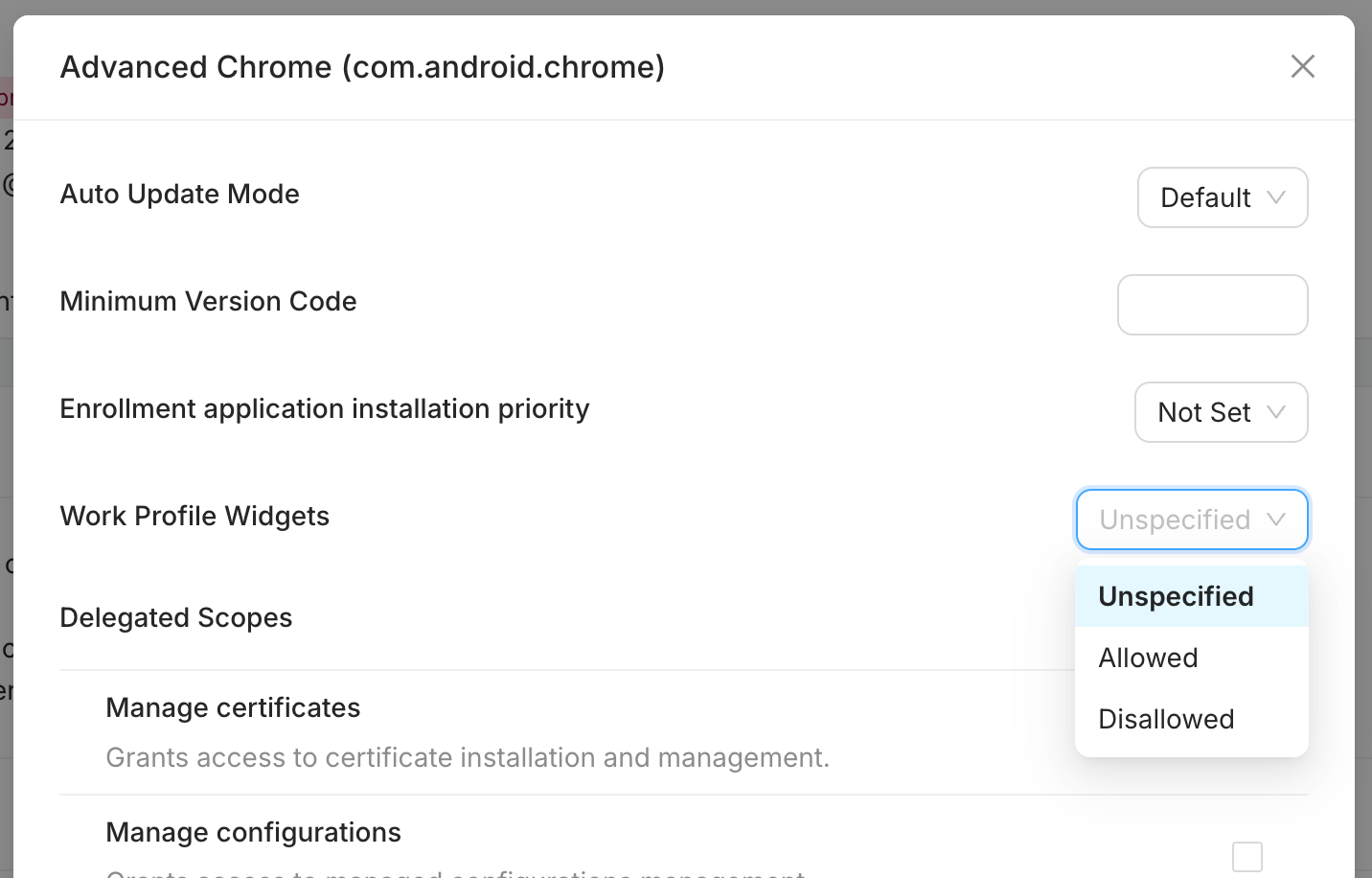
Click OK at the bottom of the dialog box to confirm the application settings.
Step 4: Deploy to the Fleet
Once all modifications are complete, click the Save button located in the upper-right corner of the profile page.
The newly configured widget constraints will deploy automatically to all devices enrolled under that profile.
Was this article helpful?
That’s Great!
Thank you for your feedback
Sorry! We couldn't be helpful
Thank you for your feedback
Feedback sent
We appreciate your effort and will try to fix the article