Official support has been added for SecureW2 as a designated Certificate Authority (CA) type within SCEP configurations. This integration allows organizations utilizing SecureW2 alongside GlobalProtect VPN to seamlessly finalize their certificate-based authentication infrastructure directly from the management console.
Procedure: How to Configure a SecureW2 Certificate Authority
Follow these step-by-step instructions to add and configure SecureW2 within your console:
Access the Certificate Section
Navigate to the Certificate section in the left-hand menu of the WizyEMM console.Open Certificate Authority Management
Select Certificate Authority from the submenu options.Initiate a New Configuration
Click the + Create button to add a new Certificate Authority.Define the Server Details
In the Name field, enter a recognizable name for your configuration.Select the Certificate Authority Type
Click the dropdown menu next to Certificate Authority Type and select SecureW2 from the list.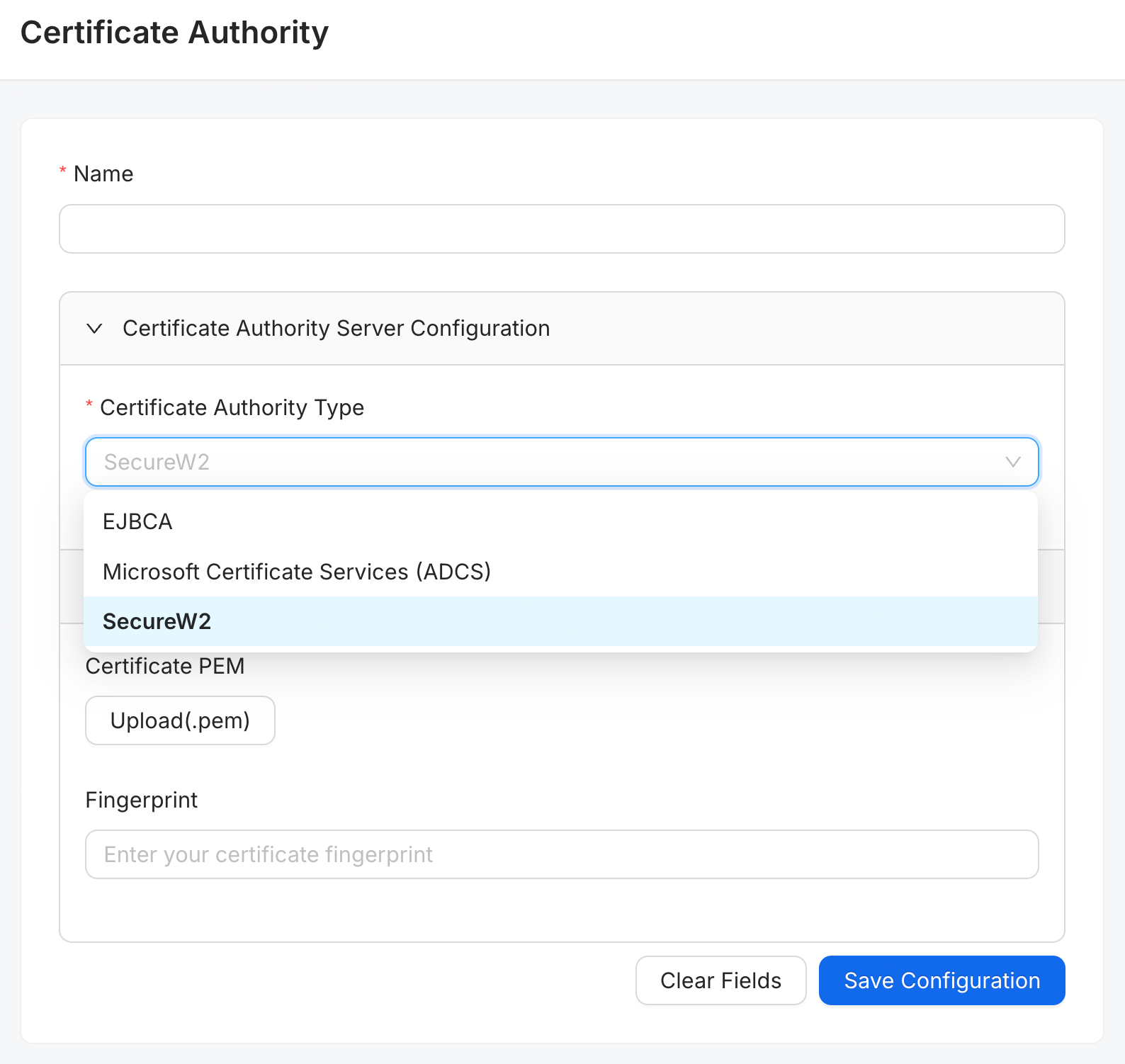
Upload the Certificate
Under the Client Certificate Authentication section, click the Upload(.pem) button to upload or paste your Root CA certificate in PEM format.Enter the Fingerprint
Provide the certificate Fingerprint if it is required for your setup.Save the Configuration
Click the Save Configuration button at the bottom right to finalize your setup and save the strategy.
Was this article helpful?
That’s Great!
Thank you for your feedback
Sorry! We couldn't be helpful
Thank you for your feedback
Feedback sent
We appreciate your effort and will try to fix the article