This update introduces the ability to utilize a dedicated Splashtop Service Account as the default credential for remote control. This allows for centralized management and standardization of remote access credentials.
Please note that the option to use an individual Splashtop account is limited. By default, access is managed through the Service Account, and the creation of personal admin accounts for override is typically limited to one personal account per approximately 300 device licenses.
Troubleshooting Steps
To allow an admin to use their own Splashtop account (instead of the default Service Account):
Log in to the WizyEMM console with a Super Admin account.
On the left menu, go to Admin Accounts.
Click + Create or locate and select the existing Admin Account you wish to configure.
In the New Administrator pop-up, locate the field labeled Splashtop Account (found between the Last Name and Role fields).
By default, this field is set to Use Splashtop Service Account.
To allow the admin to use their personal Splashtop account for remote control, select the option for their individual Splashtop Account from the dropdown menu.
Click OK on the lower right of the pop-up to save the changes.
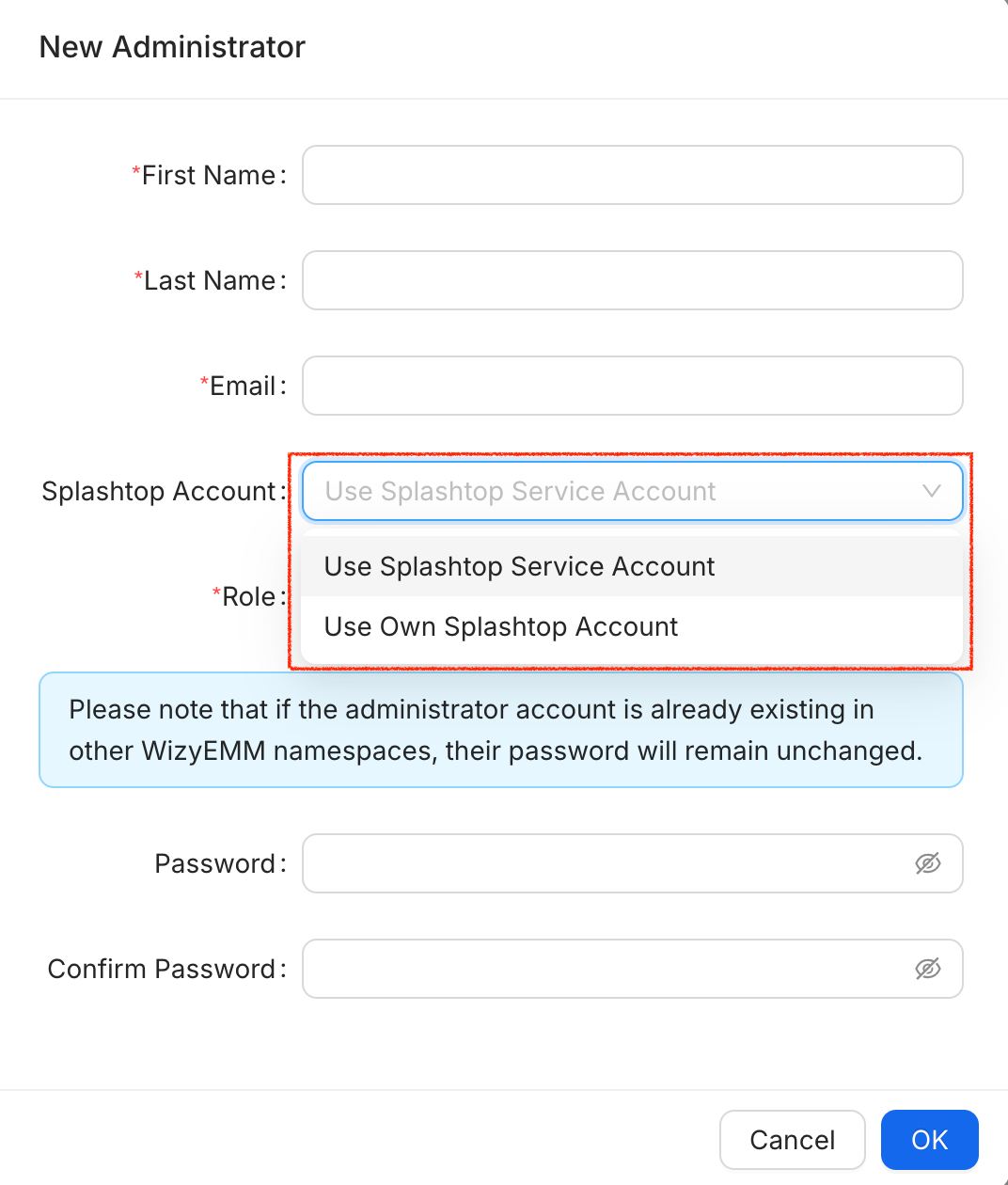
Please note that we are responsible for creating the Splashtop account. Selecting 'Use Splashtop Service Account' or ‘Use Own Splashtop Account’ without requesting the account creation from us will not automatically provide credentials to the user.
Was this article helpful?
That’s Great!
Thank you for your feedback
Sorry! We couldn't be helpful
Thank you for your feedback
Feedback sent
We appreciate your effort and will try to fix the article