WizyEMM now supports the management of multiple versions for the same APK. This allows administrators to distribute specific app versions based on device configuration, hardware capabilities, or OS compatibility, ensuring better performance and reducing installation issues across a diverse fleet.
Method 1: Managing APK Versions in Application Management
Navigate to Application Management in the WizyEMM console sidebar.
Click on Managed Applications to view your current app library.
When sideloading or selecting an app to install, you will now see a list of available versions (e.g., v2.39.0, v2.39.1, etc.) under the application name.
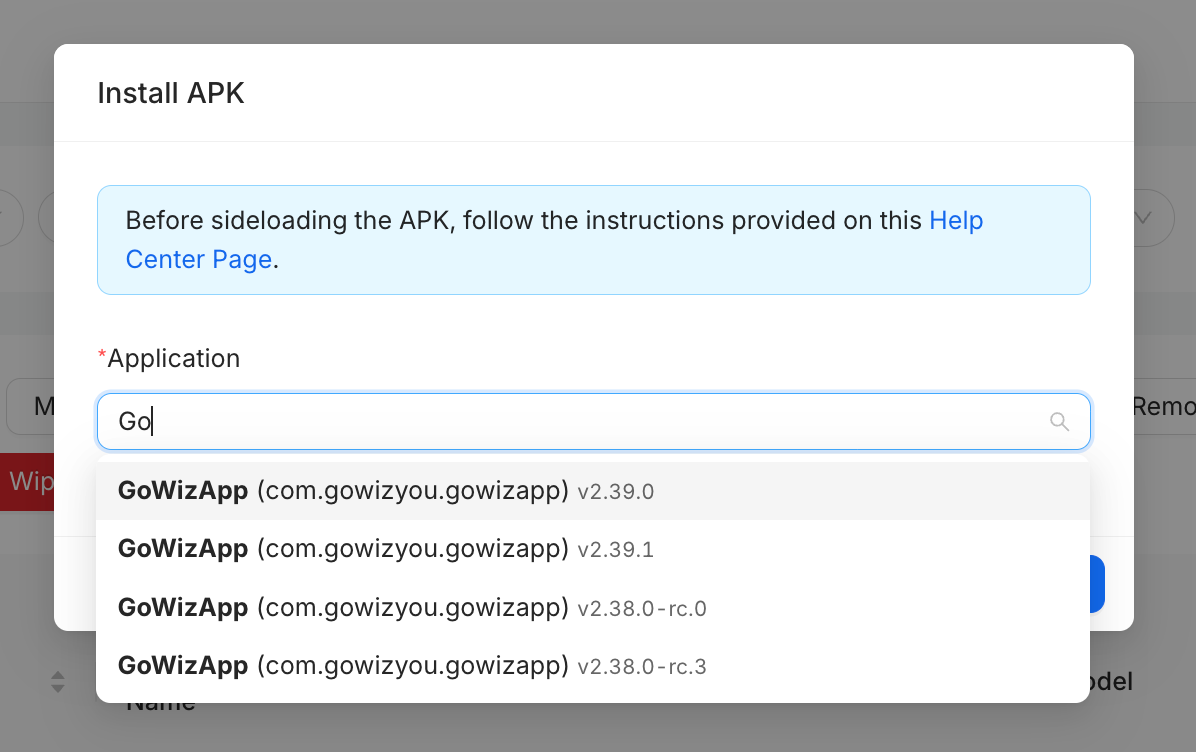
Select the specific version required for your target device group.
Review the List of Managed Applications to see different versions of the same package name listed individually with their respective version numbers.
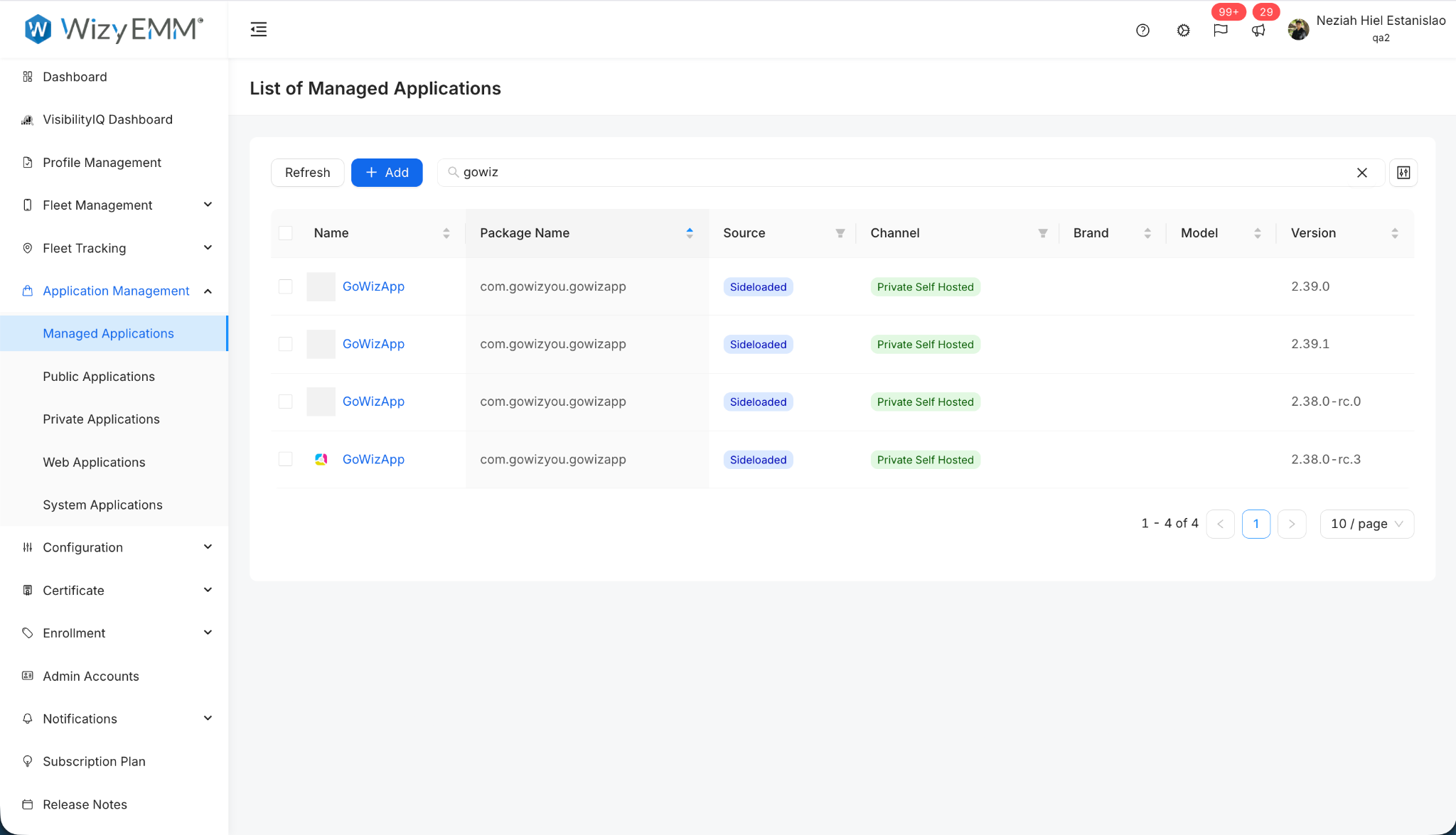
Assign the appropriate version to the relevant profile to ensure seamless, tailored updates.
Method 2: Selecting Specific APK Versions in Profile Management (v2.68.0+)
Starting in release v2.68.0, administrators can select specific application versions directly within a device profile to control precisely which build is pushed to enrolled devices.
Log in to your WizyEMM console.
Navigate to Profile Management on the left menu panel.
Select the specific profile you wish to configure.
Click on the Applications tab within the profile.
Add the application to the profile, or locate the application if it is already added.
Click Advanced on the right side of the application row.
In the Advanced configuration modal, locate the Version dropdown menu.
Click the dropdown and select your desired version (e.g., Latest, or a specific build such as 1.3.0 (4), 1.2.0 (3), etc.).
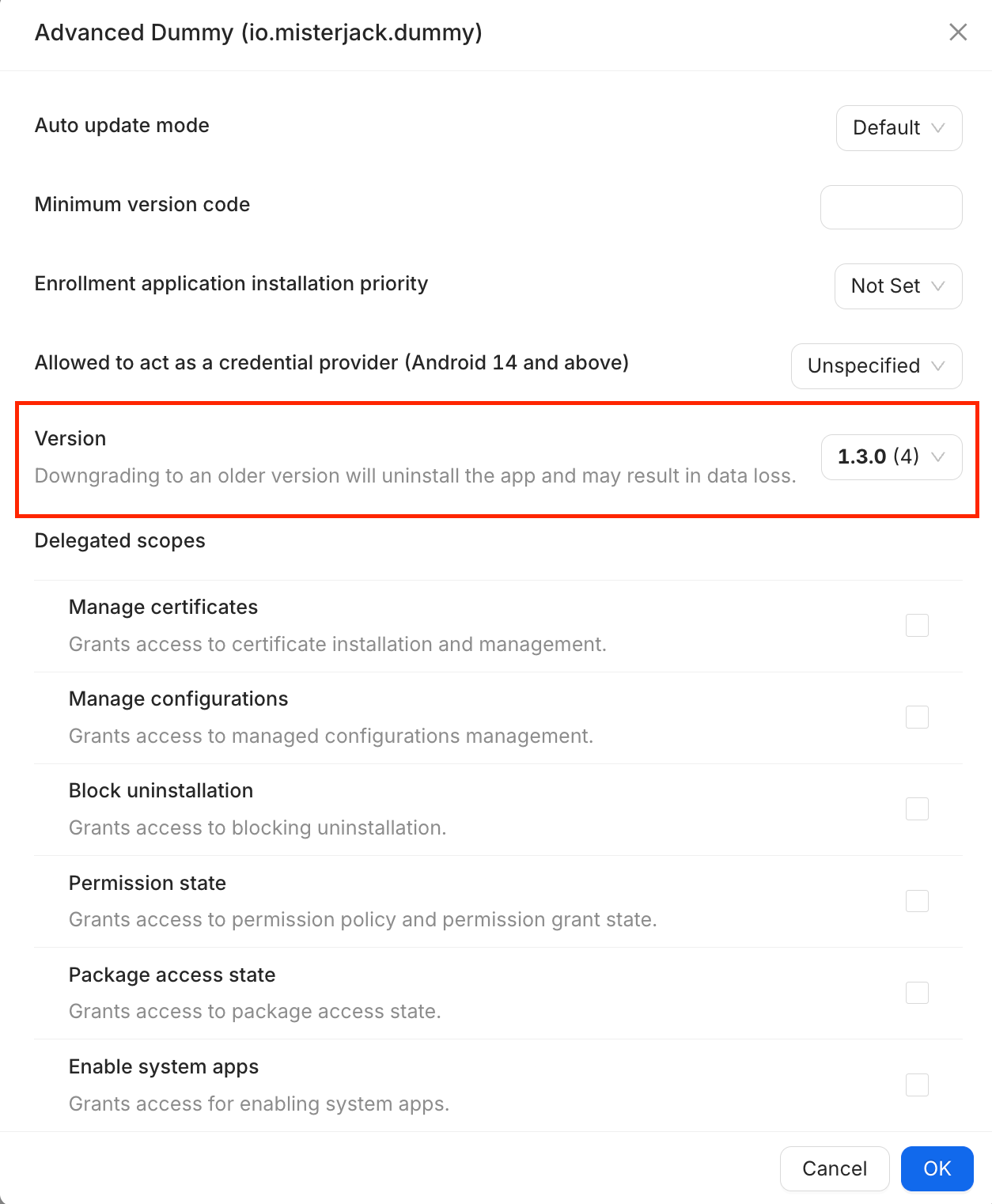
Click OK at the bottom of the modal.
Click Save in the top-right corner of the profile page to deploy the selected version to your fleet.
Key Benefits:
Optimized Compatibility: Ensure each device receives the version best suited for its specific Android OS version or hardware specs.
Reduced Installation Failures: Prevents "App not installed" errors by allowing admins to avoid pushing incompatible new versions to older devices.
Granular Update Control: Enables a staggered or tiered update approach where different groups can remain on specific versions for testing or legacy support.
Performance Stability: Guarantees better performance across your fleet by tailoring the app environment to each user's specific device.
Was this article helpful?
That’s Great!
Thank you for your feedback
Sorry! We couldn't be helpful
Thank you for your feedback
Feedback sent
We appreciate your effort and will try to fix the article