WizyEMM now integrates with Managed Google Domains, allowing administrators to add a secure user sign-in step during the initial device enrollment process. This ensures that only authorized users within your Google Workspace can enroll devices into your organization's fleet.
Configuration Steps:
Navigate to Profile Management in the WizyEMM console.
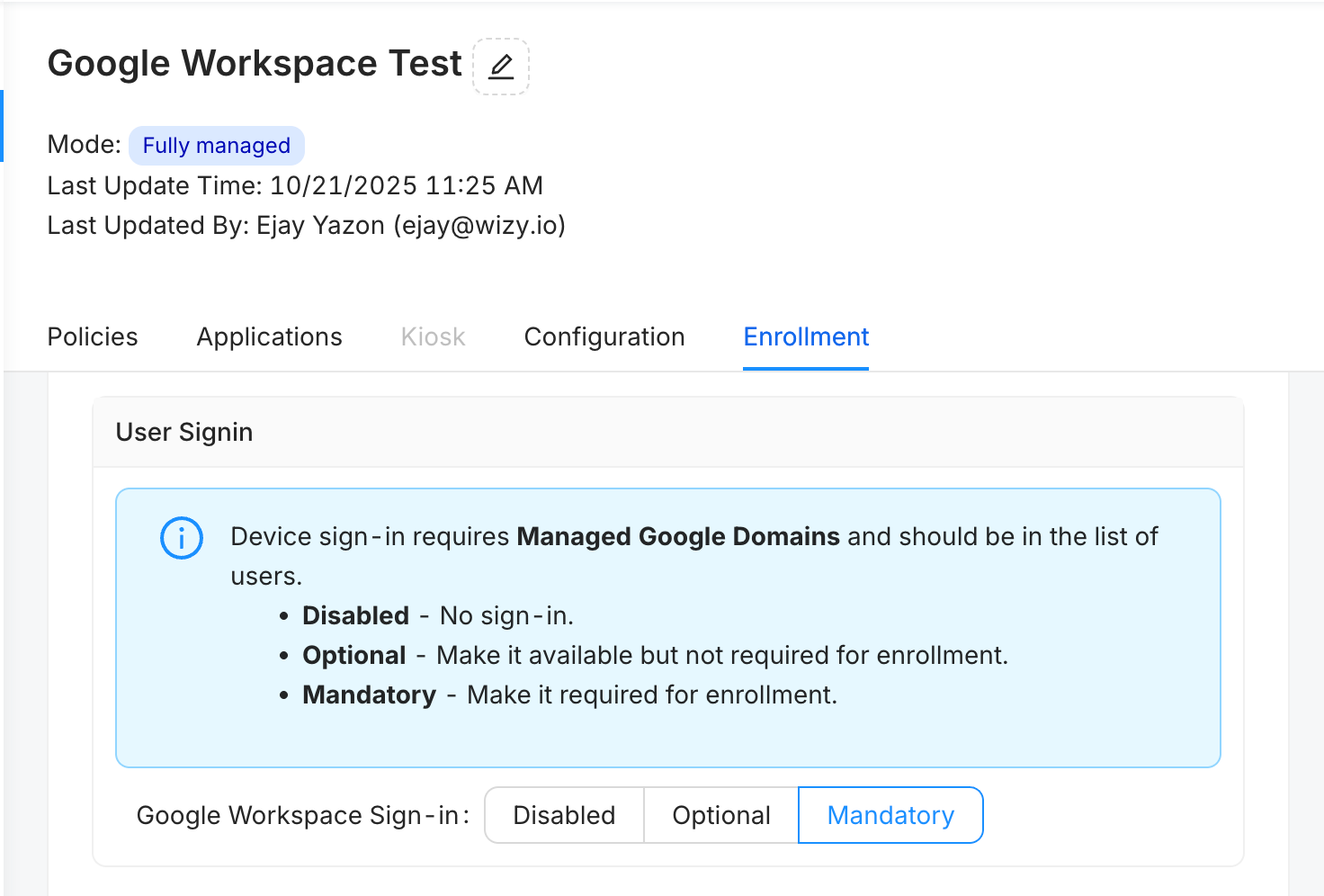
Select the specific profile you wish to configure and click on the Enrollment tab.
Locate the User Sign-in section.
Choose your preferred Google Workspace Sign-in requirement:
Disabled: No sign-in is required during enrollment.
Optional: Sign-in is available but not mandatory for enrollment.
Mandatory: Users must sign in with their managed Google account to complete enrollment.
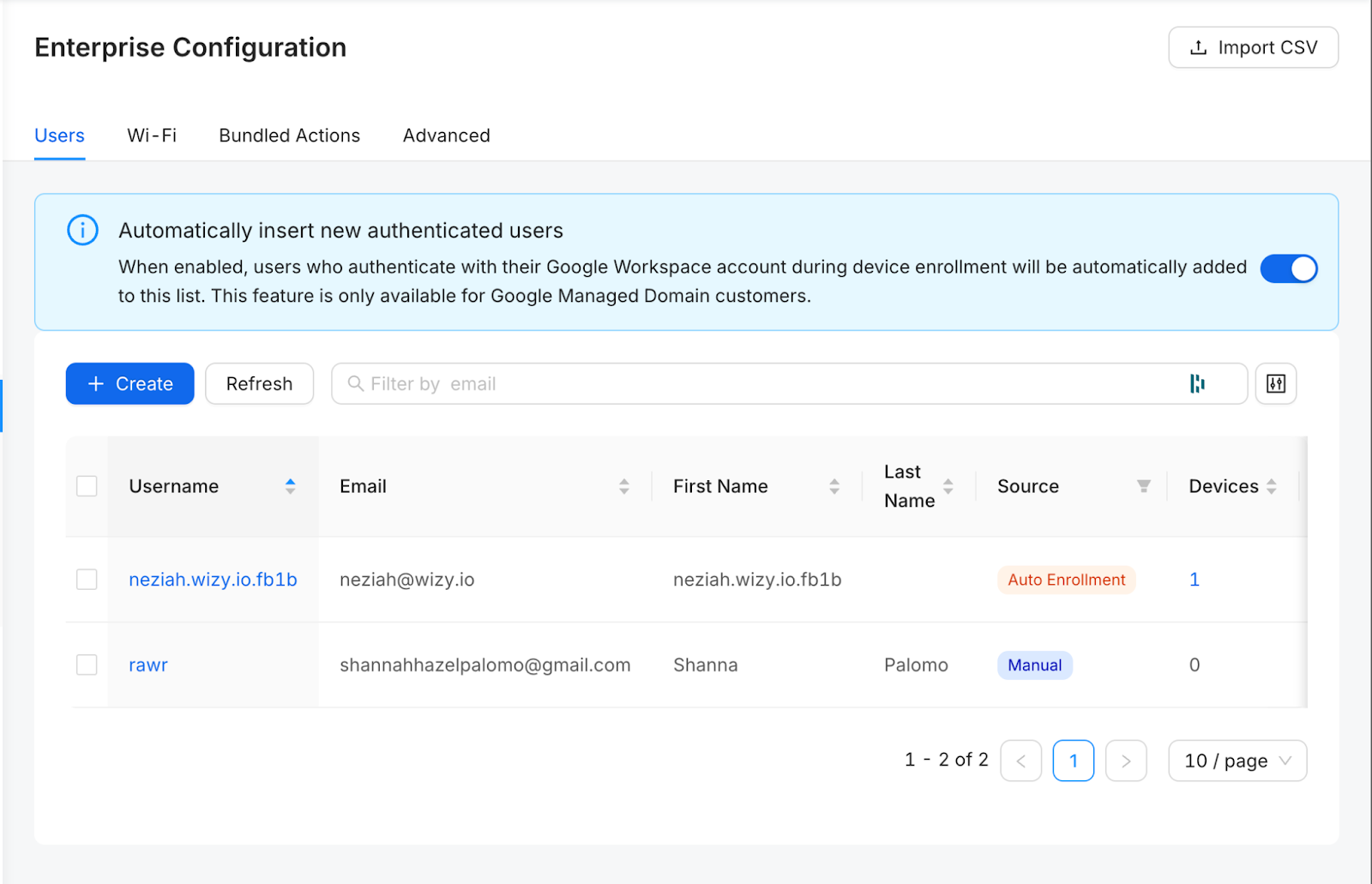
(Optional) Toggle on Automatically insert new authenticated users to ensure that any user who authenticates is automatically added to your WizyEMM user list.
Click Save to apply the enrollment requirements to the profile.
Key Benefits:
Enhanced Enrollment Security: Prevents unauthorized device enrollment by requiring official Google Workspace credentials.
Automated User Management: Streamlines the onboarding process by automatically creating user records in the console upon successful sign-in.
Flexible Deployment: Offers multiple levels of enforcement (Disabled, Optional, Mandatory) to suit different organizational security policies.
Was this article helpful?
That’s Great!
Thank you for your feedback
Sorry! We couldn't be helpful
Thank you for your feedback
Feedback sent
We appreciate your effort and will try to fix the article