This update enhances security for devices utilizing a managed work profile by offering the Unified Lock Settings. This control allows you to ensure that work profiles meet strict enterprise security requirements by determining whether the device and the work profile share the same lock or require a separate one.
Key Settings
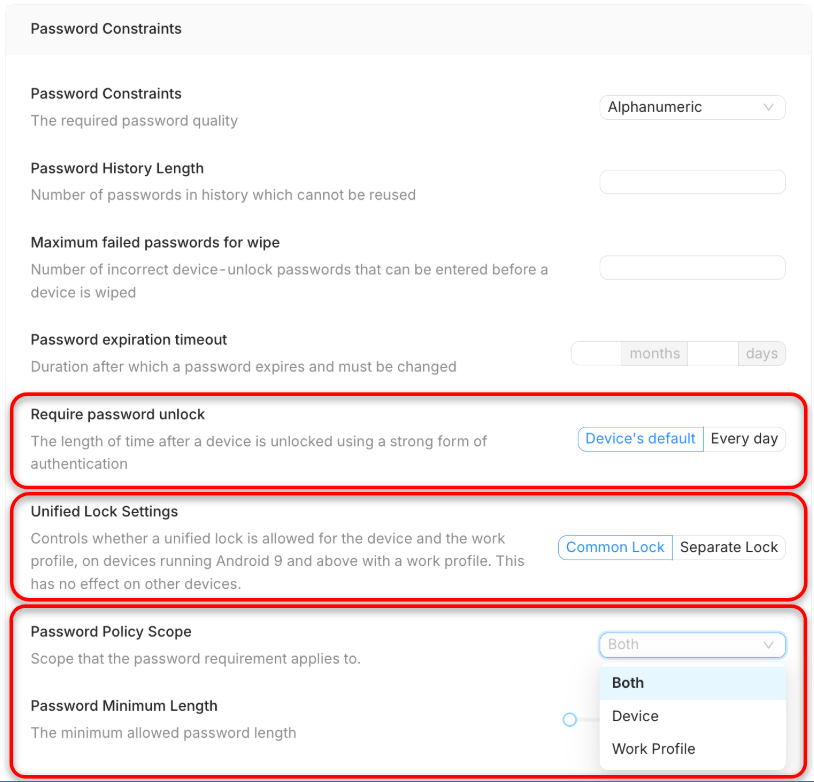
The Unified Lock Settings controls whether a unified lock is allowed for the device and the work profile, on devices running Android 9 and above with a work profile. This setting has no effect on other devices.
The options are:
Common Lock: Allows the user to unlock both the device and the work profile with a single, shared passcode.
Separate Lock: Ensures the managed work profile requires and enforces a unique, separate passcode upon device unlock, meeting strict enterprise security requirements.
Troubleshooting Steps (Configuring Unified Lock)
To configure the lock policy for a device with a work profile:
Log in to the WizyEMM console.
Go to Profile Management.
Select the profile assigned to the work profile devices (Android 9 and above).
Go to the Configuration section/tab on the profile.
Navigate to the Security Settings sub-tab.
Scroll to the Unified Lock Settings section.
Select the desired option: Common Lock or Separate Lock.
Click Save on the upper right to apply the changes.
Was this article helpful?
That’s Great!
Thank you for your feedback
Sorry! We couldn't be helpful
Thank you for your feedback
Feedback sent
We appreciate your effort and will try to fix the article