We are introducing seamless support for M3 Mobile devices! With our new OEM integration, you can now directly manage M3 Mobile devices and push OEMConfig settings from your profiles, which streamlines your configurations.
This integration allows you to fully utilize M3 Mobile's manufacturer-specific capabilities directly within the WizyEMM console, enhancing management efficiency for your M3 Mobile fleet.
Troubleshooting Steps (Enabling and Adding M3 Mobile Configuration)
To enable the M3 Mobile integration and configure settings for M3 Mobile devices in a profile:
Enable the Integration
Log in to the WizyEMM console.
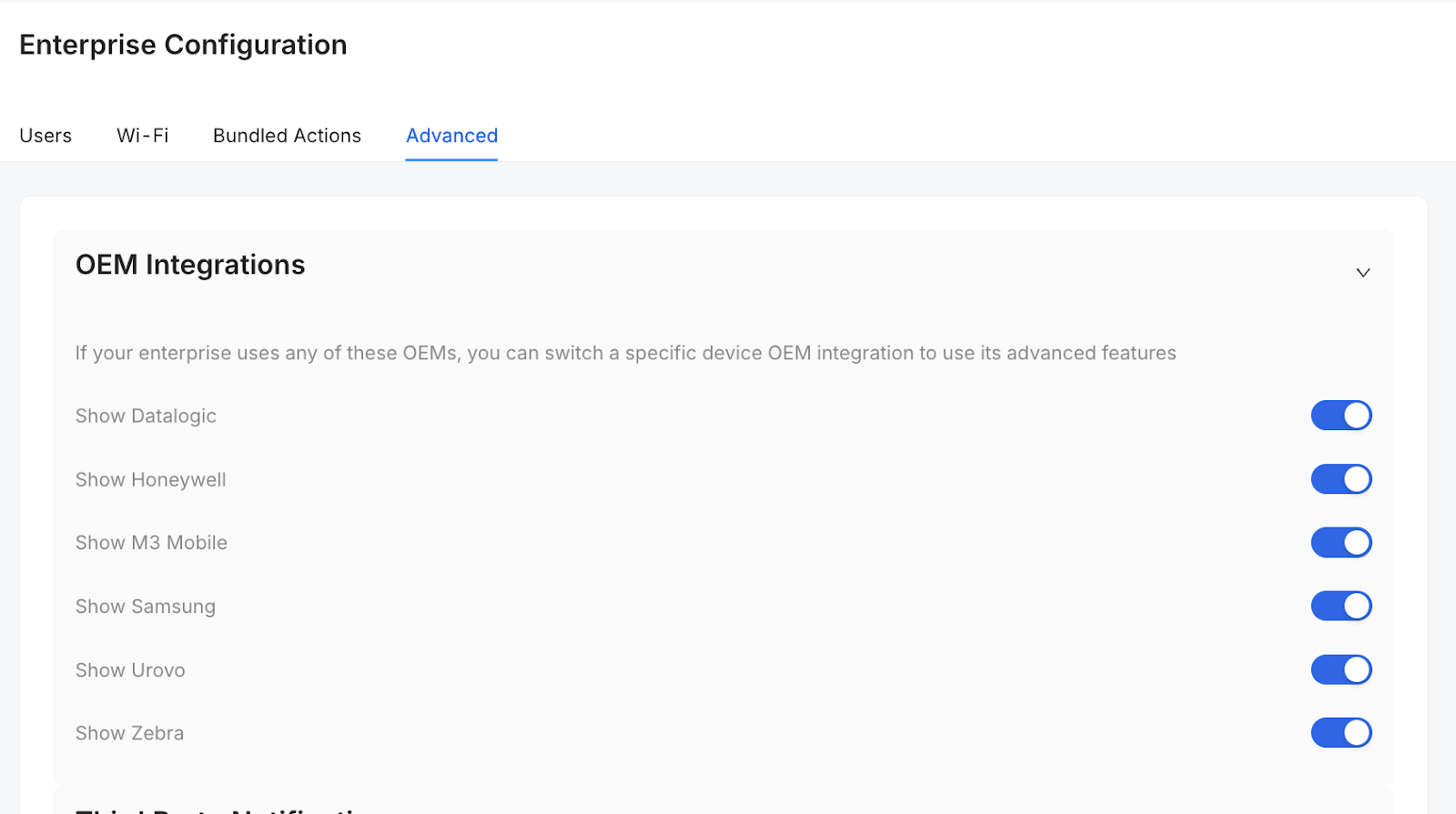
Go to Configuration (on the left menu).
Select the Advanced tab.
In the OEM Integrations section, enable the toggle switch next to Show M3 Mobile.
Apply Configuration to a Profile
Go to Profile Management.
Select the relevant profile that is assigned to your M3 Mobile devices.
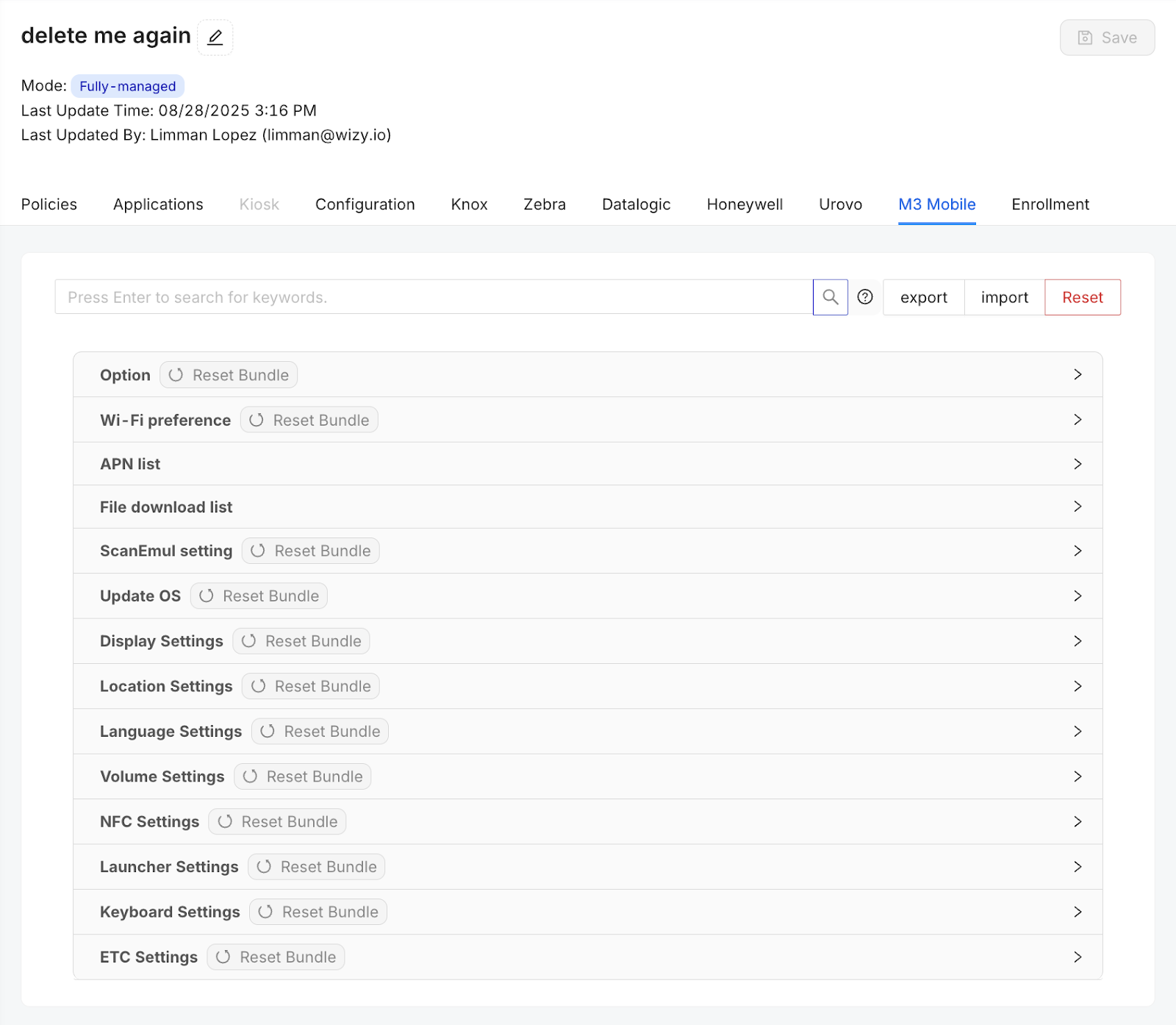
Go to the Configuration section/tab on the profile.
Locate and select the M3 Mobile section/tab within the configuration view.
Configure the desired M3 Mobile OEM-specific settings as needed.
Click Save on the upper right to apply the changes to the profile and push them to the enrolled devices.
Was this article helpful?
That’s Great!
Thank you for your feedback
Sorry! We couldn't be helpful
Thank you for your feedback
Feedback sent
We appreciate your effort and will try to fix the article