WizyEMM provides administrators with the ability to remotely trigger and silence audible alerts on managed devices. This is essential for locating misplaced hardware or getting the immediate attention of a device user.
Troubleshooting Steps:
To Locate a Device (Ring Device):
Log in to the WizyEMM console.
Navigate to Fleet Management > Android Device List.
Select the specific device(s) you wish to alert.
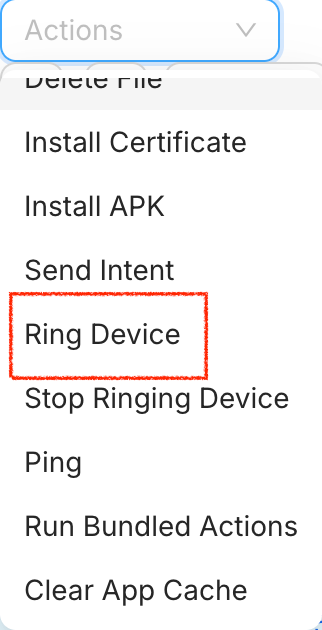
In the upper right corner, click the Actions dropdown menu.
Select Ring Device from the list of available commands.
The targeted device will begin playing a continuous alert sound.
To Silence a Device (Stop Ring Device):
Go to the Android Device List and select the device that is currently ringing.
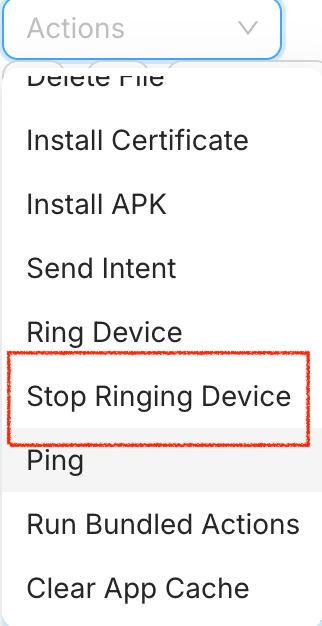
Click the Actions button on the upper right.
Choose Stop Ring Device from the command list.
The device will immediately cease the ringing sound.
Key Benefits:
Improved Asset Recovery: Easily locate misplaced or lost devices within an office or facility by triggering a loud audio cue.
Enhanced Management Control: Administrators have the precision to start and stop alerts instantly, preventing unnecessary noise pollution once a device is found.
Operational Efficiency: Quick access to these commands via the Actions menu streamlines the process of managing device status in real-time.
Was this article helpful?
That’s Great!
Thank you for your feedback
Sorry! We couldn't be helpful
Thank you for your feedback
Feedback sent
We appreciate your effort and will try to fix the article