We have added the Send MXConfig Command, allowing administrators to easily send XML configurations directly to their Zebra devices. This powerful new command enables you to push specific device settings, profiles, and configurations, which streamlines your management workflows and ensures consistent configurations across your Zebra device fleet.
Important Notes
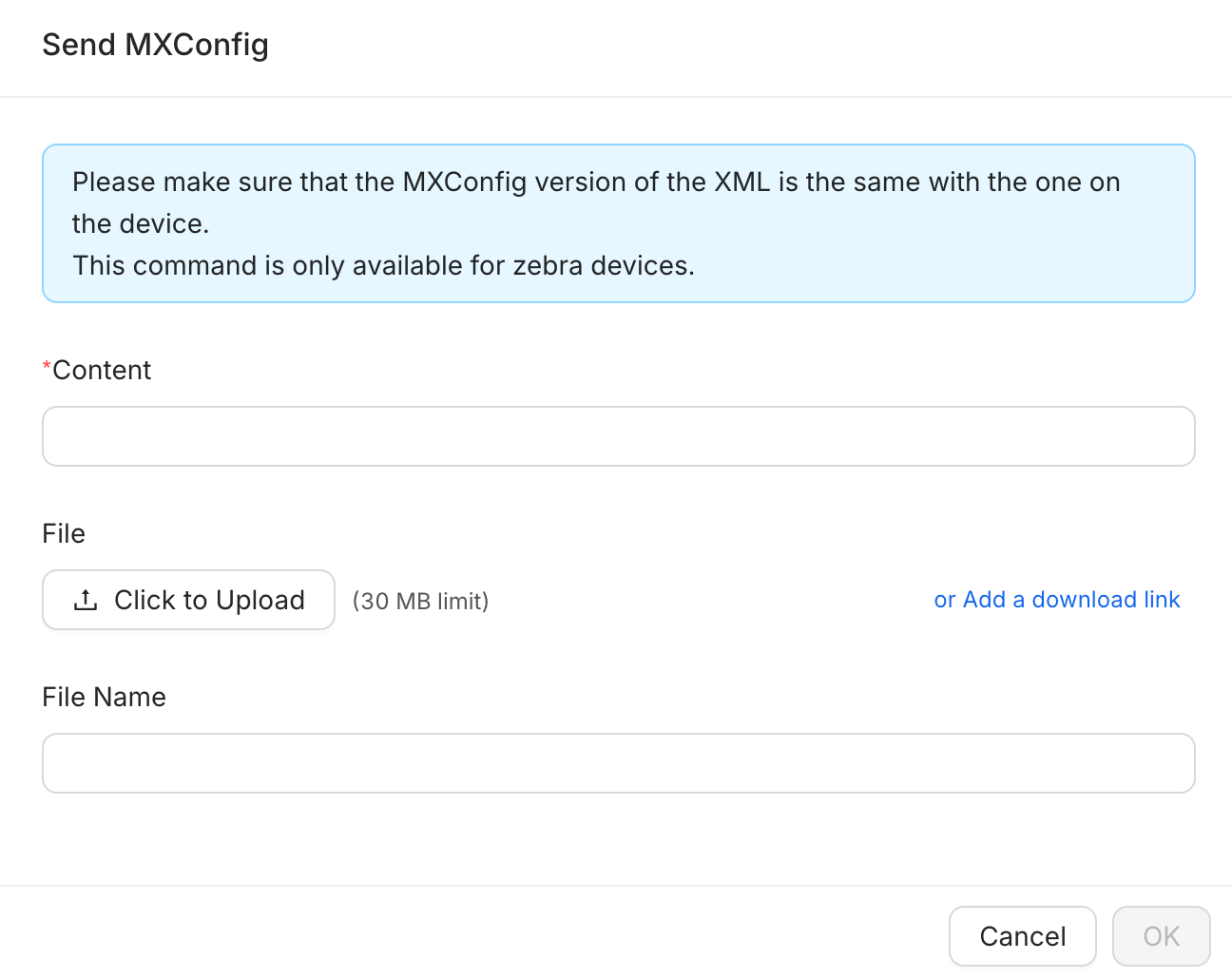
Compatibility: Please make sure that the MXConfig version of the XML is the same with the one on the device.
Device Restriction: This command is only available for Zebra devices.
File Limit: The file upload limit is 30 MB.
Troubleshooting Steps (Using the Send MXConfig Command)
Follow these steps to send an XML configuration to your selected Zebra device(s):
Log in to the WizyEMM console.
Go to Fleet Management > Android Device List.
Select the Zebra device(s) to which you want to send the configuration.
On the upper right, click Actions.
Choose Send MXConfig Command from the list of available commands.
The simplified Send MXConfig window will appear. Provide the XML content:
Content: Paste the raw XML configuration into the Content text area.
File Upload (Alternative): Alternatively, you can click Click to Upload (max 30 MB) to select an XML file from your local machine, or click Add a download link to provide a public URL.
Click OK on the lower right to push the MXConfig XML to the selected Zebra devices.
Was this article helpful?
That’s Great!
Thank you for your feedback
Sorry! We couldn't be helpful
Thank you for your feedback
Feedback sent
We appreciate your effort and will try to fix the article