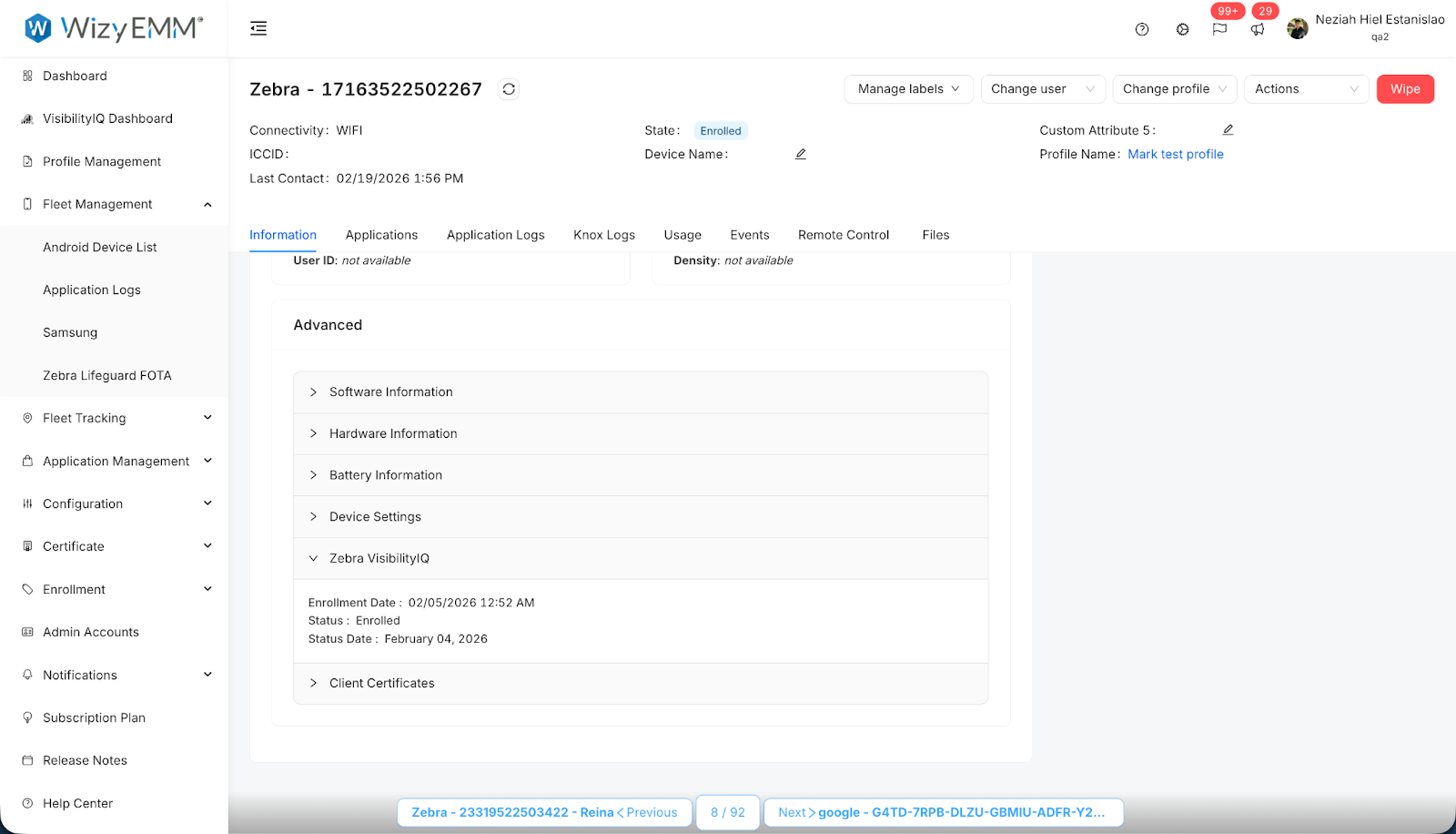
WizyEMM now displays the Zebra VisibilityIQ Enrollment Status directly within the Device Details page. This integration provides administrators with real-time visibility into the enrollment state of Zebra devices, simplifying compliance verification and the troubleshooting of enrollment-related issues.
Troubleshooting Steps:
Log in to the WizyEMM console.
Navigate to Fleet Management > Android Device List in the sidebar.
Select a specific Zebra device from the list to open its Device Details page.
Stay on the Information tab and scroll down to the Advanced section.
Locate the Zebra VisibilityIQ drop-down menu.
Expand the menu to view the current enrollment details, including:
Enrollment Date
Status (e.g., Enrolled)
Status Date
Key Benefits:
Real-Time Visibility: Instantly check the enrollment state without leaving the WizyEMM console.
Simplified Compliance: Quickly verify that devices are properly connected to Zebra VisibilityIQ services.
Efficient Troubleshooting: Faster identification of enrollment-related issues for Zebra hardware.
Was this article helpful?
That’s Great!
Thank you for your feedback
Sorry! We couldn't be helpful
Thank you for your feedback
Feedback sent
We appreciate your effort and will try to fix the article