WizyEMM has expanded its global accessibility to support international teams. You can now choose from a wider range of language options for buttons, titles, and other interface text to ensure a localized experience for your administrators.
Configuration Steps:
Go to the Gear icon located in the upper-right corner of the WizyEMM console.
Click on Settings.
Ensure you are on the Personal settings tab.
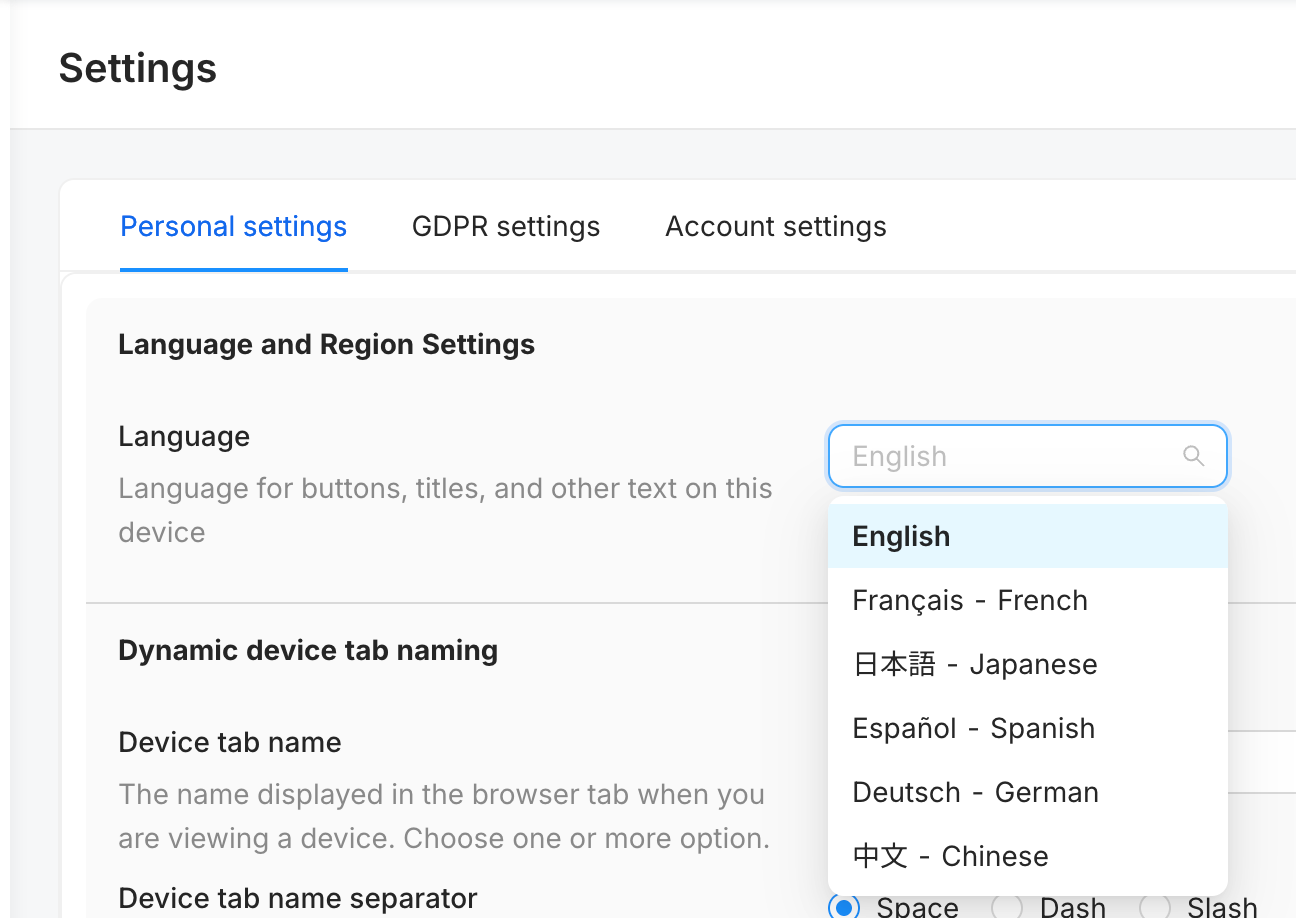
Locate the Language and Region Settings section.
Click the Language dropdown menu to see the available options.
Select your preferred language from the list:
English
Français - French
日本語 - Japanese
Español - Spanish
Deutsch - German
中文 - Chinese
The interface will update to reflect your chosen language after clicking “Save” in the lower-right corner.
Key Benefits:
Global Accessibility: Provides comprehensive support for major world languages, including the recent additions of German and Traditional Chinese.
Localized Interface: Enhances user experience by allowing administrators to work in their native or preferred language.
Easy Customization: Language settings can be updated quickly within the personal account settings without affecting other users.
Was this article helpful?
That’s Great!
Thank you for your feedback
Sorry! We couldn't be helpful
Thank you for your feedback
Feedback sent
We appreciate your effort and will try to fix the article