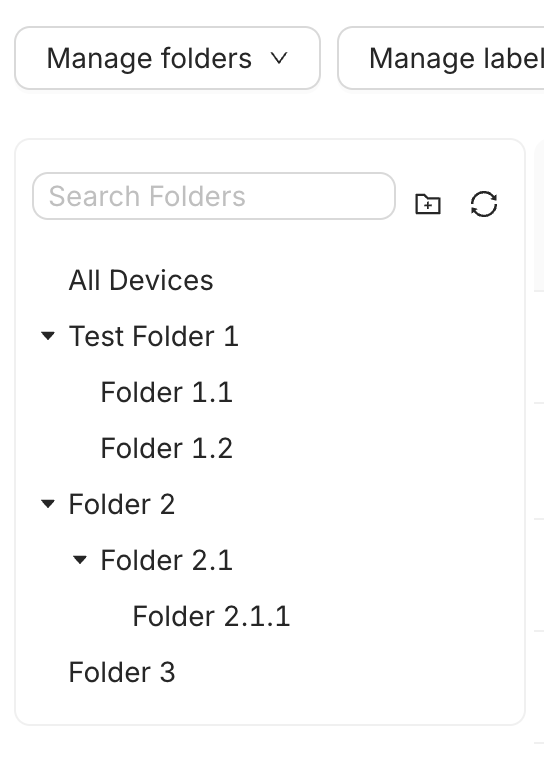
We've simplified device management by introducing Device Folders, allowing you to organize your fleet into custom, hierarchical folders. This feature enables administrators to group devices by location, department, or any other organizational criteria, making device management easier and more intuitive.
Key Capabilities
Organize Devices: Create custom folders and subfolders (e.g., Folder 2 > Folder 2.1 >Folder 2.1.1).
Simplify Viewing: Simply click on a folder (e.g., Folder 1.1) to view all assigned devices.
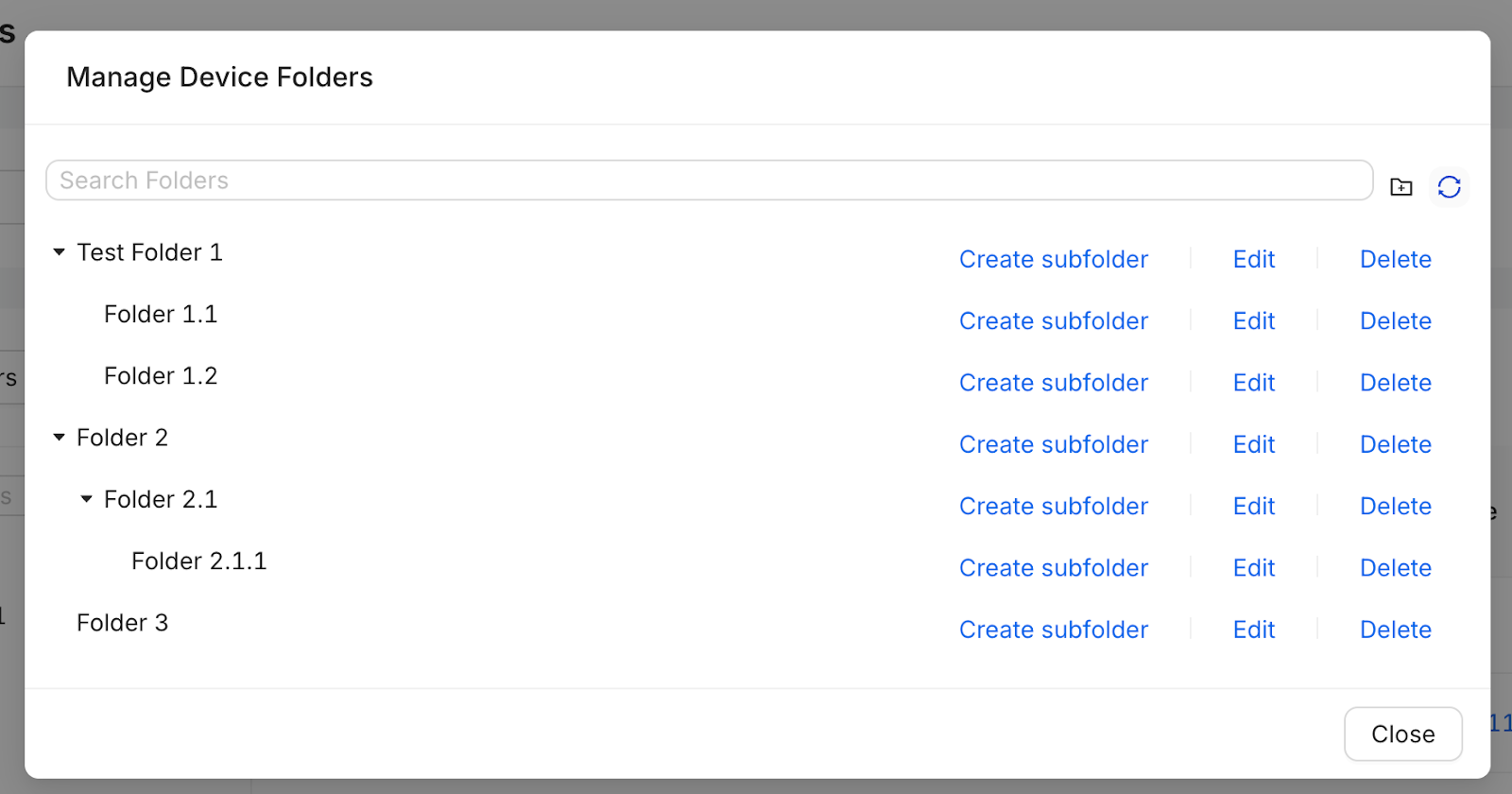
Manage Folders: Easily Create subfolder, Edit, or Delete existing folders via the Manage Device Folders screen.
Assign/Remove: Devices can be Assigned to or Removed from a folder using the quick action menu.
Troubleshooting Steps
To manage, create, and organize your device folders:
Log in to the WizyEMM console.
Go to Fleet Management > Android Device List.
Click the Manage folders dropdown button located above the device list.
From the dropdown, select Show Folder Section to display the device folder tree on the left, or select Edit/Delete to open the Manage Device Folders window.
In the Manage Device Folders window, you can:
Click Create subfolder next to an existing folder to build a hierarchy.
Click Edit to rename a folder.
Click Delete to remove a folder.
Click Close when finished editing folders.
Was this article helpful?
That’s Great!
Thank you for your feedback
Sorry! We couldn't be helpful
Thank you for your feedback
Feedback sent
We appreciate your effort and will try to fix the article